

- Updated: February 4, 2026
- 6 min read
Chrome’s Vertical Tabs: A Game‑Changer for Browsing Efficiency
Chrome’s new vertical tabs feature reimagines tab management by moving tabs to a left‑hand sidebar, offering a more spacious and organized browsing experience that can dramatically improve browser productivity.
Why This Matters for Chrome Enthusiasts
Earlier this week, Android Police published a hands‑on review of Chrome’s vertical tabs, highlighting how the change feels on both desktop and Android devices. For tech‑savvy professionals who juggle dozens of tabs daily, the shift from a cramped horizontal bar to a scrollable vertical pane promises a cleaner workflow and less visual clutter.
What Are Chrome’s Vertical Tabs?
Vertical tabs are essentially the same tab objects you know from the classic Chrome UI, but they are displayed in a left‑aligned column instead of the traditional top bar. The column can be resized, collapsed, or pinned, and each tab shows its favicon, title, and a preview thumbnail when hovered.
- Accessible via the new “Vertical tabs” toggle in the Chrome settings menu.
- Supports drag‑and‑drop reordering, grouping, and muting directly from the sidebar.
- Integrates with Chrome’s existing tab search, allowing instant navigation by typing a keyword.
How the Feature Works – A User‑Centric Walkthrough
When you enable vertical tabs, Chrome adds a slim, scrollable pane on the left side of the window. Here’s what you’ll notice:
- Immediate visual expansion: More horizontal space is freed for web content, which is especially useful on widescreen monitors.
- Hover previews: Hovering over a tab reveals a miniature snapshot of the page, helping you locate the right tab without clicking.
- Group labels: You can create custom groups (e.g., “Research”, “Clients”, “Personal”) that appear as collapsible headers.
- Keyboard shortcuts: Ctrl+Shift+A opens the vertical tab view, while Ctrl+1‑9 still jumps to the nth tab.
Pro tip:
Combine vertical tabs with Chrome’s built‑in Tab Search (Ctrl+Shift+A) to locate a tab in milliseconds, even when you have 50+ open.
Benefits for Browser Productivity
Switching to a vertical layout delivers several tangible advantages for power users:
- Better use of screen real estate: On 16:9 or ultrawide monitors, the horizontal tab bar often consumes valuable width. Vertical tabs reclaim that space for the actual web page.
- Improved visual hierarchy: With titles displayed vertically, you can scan longer names without truncation, reducing the “Which tab is this?” guesswork.
- Easier grouping and nesting: Dragging tabs into groups feels more natural when they’re stacked, similar to file‑folder organization.
- Reduced cognitive load: The left‑hand column aligns with the natural reading flow for left‑to‑right languages, making navigation feel intuitive.
Potential Drawbacks and Considerations
While the feature shines for many, it isn’t a universal win:
- Learning curve: Long‑time Chrome users may need a few sessions to adapt to the new layout.
- Reduced vertical space on small screens: On laptops with limited height, the sidebar can eat into vertical scrolling area.
- Extension compatibility: Some legacy extensions that modify the top tab bar may not fully support the vertical view.
- Performance impact: Rendering live thumbnails for many tabs can increase memory usage on low‑end devices.
Vertical Tabs vs. Existing Tab Management Solutions
Below is a quick MECE‑styled comparison of Chrome’s native vertical tabs against popular third‑party tab managers and built‑in alternatives.
| Feature | Chrome Vertical Tabs | OneTab (Extension) | Toby (Extension) |
|---|---|---|---|
| Native integration | ✅ Built‑in, no extra install | ❌ Requires extension | ❌ Requires extension |
| Live thumbnail preview | ✅ Hover preview | ❌ Static list | ❌ No preview |
| Group nesting | ✅ Collapsible groups | ✅ Simple groups | ✅ Advanced workspaces |
| Memory footprint | ⚖️ Moderate | Low (tabs saved) | Low‑Medium |
| Cross‑device sync | ✅ Syncs via Google account | ✅ Syncs via extension cloud | ✅ Syncs via Toby cloud |
Visual Overview – How It Looks in Action
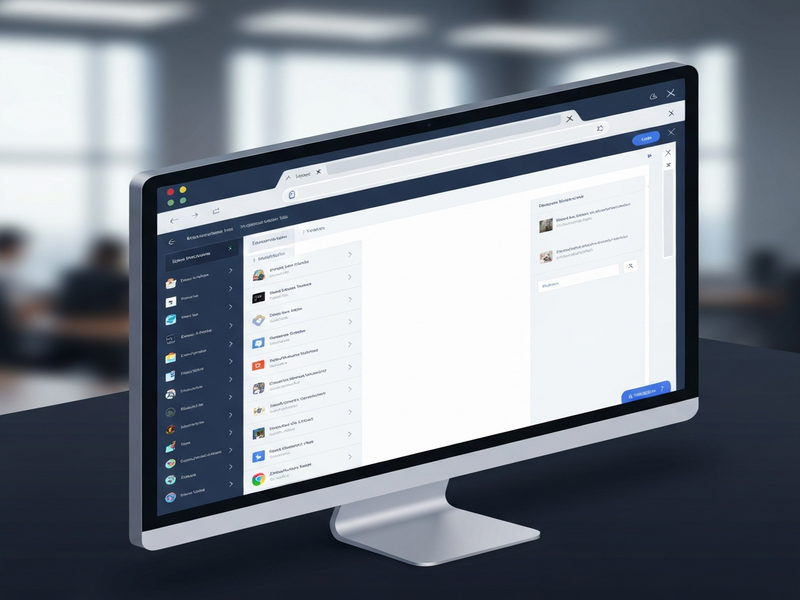
The illustration below captures the core layout of Chrome’s vertical tabs, highlighting the sidebar, hover previews, and group headers.
Related UBOS Resources for Power Users
If you’re looking to extend the productivity boost beyond Chrome, UBOS offers a suite of AI‑driven tools that integrate seamlessly with modern workflows.
- Explore the UBOS homepage to see the full ecosystem of AI solutions.
- Get a high‑level view of the platform with the UBOS platform overview, which includes built‑in automation and AI agents.
- For marketers, the AI marketing agents can draft copy, analyze SEO, and schedule posts automatically.
- Start a new project quickly using UBOS templates for quick start, such as the AI SEO Analyzer template.
- Design custom web applications with the Web app editor on UBOS, perfect for building internal dashboards that track tab usage metrics.
- Automate repetitive tasks with the Workflow automation studio, which can trigger actions when a new Chrome tab is opened.
- Startups can benefit from the UBOS for startups program, offering discounted access to AI services.
- SMBs looking for scalable solutions should review UBOS solutions for SMBs.
- Enterprises can leverage the Enterprise AI platform by UBOS for organization‑wide automation.
- Join the UBOS partner program to co‑create AI‑enhanced extensions for Chrome.
- Check out the UBOS portfolio examples for real‑world case studies of productivity gains.
- Integrate conversational AI into your workflow with the ChatGPT and Telegram integration or the OpenAI ChatGPT integration.
- For voice‑first experiences, explore the ElevenLabs AI voice integration.
- Store and query vector embeddings using the Chroma DB integration.
- Review pricing options at UBOS pricing plans to find a tier that matches your tab‑management needs.
Conclusion – Should You Switch to Vertical Tabs?
For professionals who spend hours navigating dozens of open pages, Chrome’s vertical tabs provide a tangible productivity lift by freeing horizontal space, improving tab discoverability, and aligning with natural reading patterns. The feature’s native integration means no extra extensions are required, and its sync capabilities keep your workflow consistent across devices.
However, users on smaller screens or those heavily reliant on legacy extensions should test the feature in a controlled environment before fully committing. The good news is that Chrome lets you toggle the sidebar on and off, so you can experiment without losing your current setup.
Ready to boost your browsing efficiency? Enable vertical tabs today, and explore how UBOS’s AI‑powered tools can further streamline your digital workspace.