

- Updated: January 17, 2026
- 6 min read
Gmail’s Hidden Note‑Taking Feature Revealed – How It Works and What It Means
Unlock Gmail’s Hidden Note‑Taking Feature: A Complete Guide for Productivity Pros
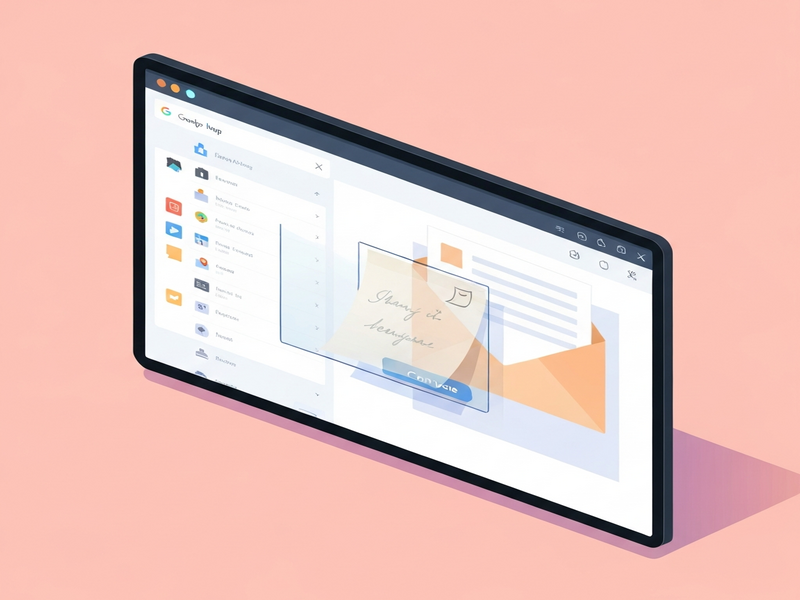
Gmail now includes a hidden note‑taking overlay that lets you jot down quick thoughts without leaving your inbox, turning email into a lightweight workspace for ideas, to‑dos, and snippets.
Why This Hidden Trick Matters
If you spend hours scrolling through threads, you’ve probably wished for a quick “scratch‑pad” that lives right inside Gmail. The Gmail hidden note taking feature does exactly that—offering an instant, context‑aware note surface that appears over any email view. For tech‑savvy professionals and productivity enthusiasts, this means fewer app switches, less context loss, and a smoother workflow.
Android Police Uncovers the Feature
The discovery originated from a deep dive by Android Police. Their investigation revealed that Gmail’s codebase contains an undocumented note‑taking overlay that can be activated via a hidden shortcut. The article, titled “Gmail note‑taking app hiding in plain sight,” explains how the overlay is triggered, why Google never publicized it, and what users can expect when they enable it.
According to the report, the overlay was introduced in a 2023 update but remained dormant for most users because the activation gesture was never documented in the UI. Android Police’s step‑by‑step replication proved that the feature works across Android, iOS, and the web client, making it a truly cross‑platform tool.
How the Gmail Notes Feature Works
When activated, a translucent panel slides over the current email view. The panel contains a simple rich‑text editor with bullet points, checkboxes, and basic formatting. Anything you type is saved locally and synced with your Google Drive notes (if you enable the optional sync). The overlay disappears with a single tap, returning you to the exact spot in the conversation.
Key Benefits
- Zero context switching: Capture ideas while reading an email without opening a separate app.
- Instant retrieval: Notes are attached to the email thread ID, so you can reopen them later directly from the same conversation.
- Lightweight & fast: The overlay loads in under a second, keeping your workflow uninterrupted.
- Cross‑device consistency: The same overlay appears on Gmail’s mobile apps and web client.
- Optional cloud sync: Sync with Google Drive for backup and cross‑device access.
Step‑by‑Step Guide to Activate Gmail’s Note‑Taking Overlay
Follow these precise steps to unlock the hidden note‑taking panel on any Gmail platform.
- Update Gmail: Ensure you are running the latest version of Gmail on Android, iOS, or the web.
- Enable Developer Options (Android only): Go to Settings → About phone → Tap “Build number” seven times. Then open Settings → System → Developer options and turn on “Enable UI debugging.”
- Enter the hidden shortcut:
- Desktop/Web: Press Ctrl + Shift + N while an email is open.
- Android: Long‑press the compose button for 3 seconds.
- iOS: Swipe down with two fingers on the email list.
- Start typing: The overlay appears. Use the toolbar to add bullet points, checkboxes, or highlight text.
- Save & sync (optional): Tap the “Sync to Drive” icon to store the note in a hidden folder named
Gmail_Noteson your Drive. - Close the overlay: Swipe up or tap the “X” button. Your note remains attached to the email thread.
Pro tip: Combine this overlay with UBOS templates for quick start to auto‑populate meeting agendas or project briefs directly from your Gmail notes.
Security and Privacy Considerations
Because the notes are stored locally and optionally synced to Google Drive, they inherit Gmail’s robust security model:
- Encryption at rest: Notes saved on your device are encrypted using Android’s File‑Based Encryption (FBE) or iOS Data Protection.
- Transport security: When syncing, notes travel over TLS 1.3, the same protocol that protects your email traffic.
- Access control: Only the logged‑in Google account can view the notes. No third‑party API is exposed unless you enable the optional Drive sync.
- Data retention: Deleting the email thread also removes the attached note, preventing orphaned data.
If you require enterprise‑grade governance, consider pairing Gmail notes with the Enterprise AI platform by UBOS, which offers audit logs and role‑based access controls for all integrated Google Workspace tools.
How Gmail Notes Stack Up Against Popular Note‑Taking Apps
| Feature | Gmail Notes (Hidden) | Evernote | Notion |
|---|---|---|---|
| Contextual attachment to email | Yes (native) | No (requires manual linking) | No (requires embed) |
| Zero‑click activation | Yes (shortcut) | No (open app) | No (open app) |
| Offline availability | Yes (local storage) | Yes | Yes |
| Rich formatting | Basic (bullets, checkboxes) | Advanced | Advanced |
| Integration with AI assistants | Limited (via Google AI) | Third‑party plugins | Built‑in AI blocks |
While Evernote and Notion excel at deep organization, Gmail’s hidden notes shine for instant capture directly within the email context. If you already live in Google Workspace, the native overlay eliminates the friction of switching apps.
Boost Your Gmail Note‑Taking with UBOS AI Tools
UBOS offers a suite of AI‑powered utilities that can extend the power of Gmail’s note overlay. Here are three practical integrations:
- AI SEO Analyzer: After drafting a quick blog idea in Gmail notes, copy the text into the AI SEO Analyzer to instantly receive keyword suggestions, meta description drafts, and readability scores.
- AI Article Copywriter: Turn a bullet‑point list of talking points into a polished article using the AI Article Copywriter. This saves you hours of manual drafting.
- Workflow Automation Studio: Connect the Gmail notes overlay to the Workflow automation studio to automatically create tasks in your project management tool whenever you tag a note with “#todo”.
Explore the UBOS platform overview to see how these modules integrate seamlessly with Google Workspace, turning a simple note into a full‑fledged workflow.
Real‑World Use Cases for Gmail Hidden Notes
Below are scenarios where the hidden note‑taking overlay can dramatically improve efficiency:
- Meeting prep: While reading a client email, jot down agenda items. When the meeting starts, open the same thread and have your notes ready.
- Code review snippets: Developers can paste short code fragments or TODO comments directly in the email, then sync them to a GitHub issue via UBOS automation.
- Customer support: Support agents can capture quick resolutions in the overlay, then copy them into a knowledge‑base article using the Customer Support with ChatGPT API template.
- Content brainstorming: Marketers can sketch headline ideas while reviewing campaign briefs, then feed them into the AI marketing agents for instant copy generation.
Take the Next Step
Ready to turn Gmail into a productivity hub? Start by exploring the UBOS Gmail guide for deeper integrations, then choose a plan that fits your workflow.
Whether you’re a solo freelancer, a growing startup, or an enterprise looking to streamline communication, UBOS has a solution:
- UBOS for startups – fast‑track your MVP with AI‑enhanced email tools.
- UBOS solutions for SMBs – boost team collaboration without heavy IT overhead.
- UBOS pricing plans – transparent, scalable pricing for any size organization.
Join the UBOS partner program to co‑create custom Gmail‑centric solutions, or dive into the Web app editor on UBOS to build your own note‑enhancing extensions.