

- Updated: February 22, 2026
- 5 min read
Troubleshooting X.com Errors: Disable Privacy Extensions for Seamless Access
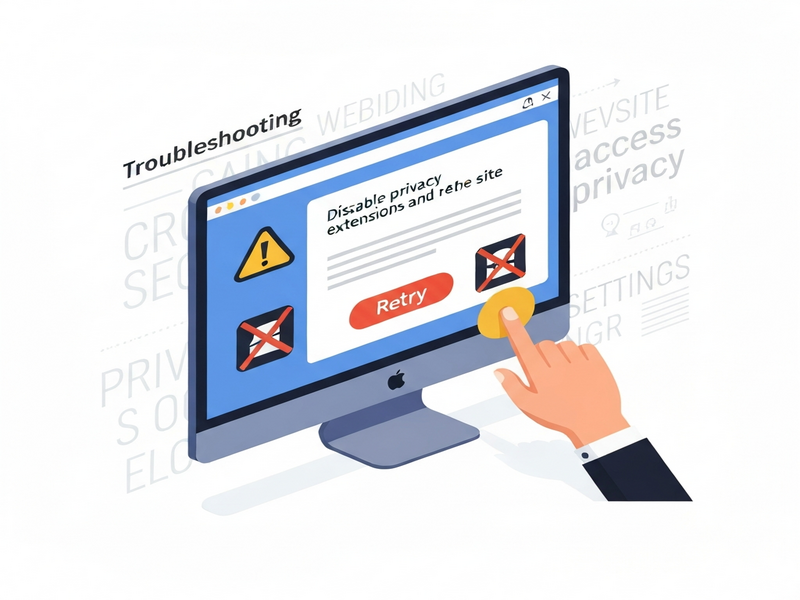
If you’re encountering errors on x.com, the quickest fix is to temporarily disable any privacy‑focused browser extensions and then reload the page.
Why This Happens and How to Fix It – A Quick Overview
Earlier today, a user on X (formerly Twitter) shared a concise tip for anyone struggling with a stubborn tweet about an x.com issue. The advice was simple yet powerful: disable privacy extensions and try again. While the suggestion sounds straightforward, many tech‑savvy professionals overlook the underlying reasons why privacy tools can interfere with modern web applications.
This article expands on that tweet, offering a step‑by‑step troubleshooting guide, explaining the technical background, and highlighting the broader benefits of a clean browsing environment when using AI‑driven platforms like UBOS. Whether you’re a developer, a marketer, or an enterprise IT manager, the insights below will help you resolve the issue quickly and keep your workflow uninterrupted.
Key Takeaways from the Original Tweet
- Identify the error message on x.com (e.g., “Page failed to load” or “Resource blocked”).
- Temporarily turn off privacy extensions such as uBlock Origin, Ghostery, or Privacy Badger.
- Refresh the page or use the browser’s “hard reload” (Ctrl + Shift + R).
- If the problem disappears, add x.com to the extension’s whitelist.
- Re‑enable extensions one by one to pinpoint the exact blocker.
Step‑by‑Step Guide: Disabling Privacy Extensions & Retrying
1. Locate Your Extensions Panel
In Chrome, click the three‑dot menu → More tools → Extensions. In Firefox, go to the hamburger menu → Add‑ons and themes. This panel lists every installed extension, including privacy‑focused ones.
2. Turn Off Extensions One at a Time
Toggle the switch next to each privacy extension to “off.” It’s best to start with the most aggressive blockers (e.g., uBlock Origin, AdGuard). Keep a note of which extensions you disable.
3. Perform a Hard Reload
After disabling, press Ctrl + Shift + R (Windows/Linux) or Cmd + Shift + R (macOS). This forces the browser to bypass the cache and fetch fresh resources from x.com.
4. Verify the Fix
If the page loads correctly, you’ve identified the culprit. Re‑enable extensions one by one, repeating the hard reload after each activation. When the error reappears, you’ll know exactly which extension is blocking the site.
5. Whitelist x.com in the Problematic Extension
Most privacy extensions allow you to add sites to a whitelist or “allow list.” Open the extension’s settings, locate the whitelist section, and add https://x.com. This tells the extension to stop filtering resources from that domain while keeping protection active elsewhere.
6. Re‑enable All Extensions
Once the whitelist is set, turn all extensions back on. Perform another hard reload to confirm that the site remains functional with the full suite of privacy tools active.
“Disabling extensions is a diagnostic step, not a permanent solution. Whitelisting ensures you retain privacy while restoring site functionality.”
Why a Clean Browser Matters for AI‑Powered Platforms
Modern AI platforms—such as the UBOS platform overview—rely heavily on JavaScript, WebSockets, and third‑party APIs. Privacy extensions that block trackers or scripts can unintentionally break these connections, leading to the exact errors you see on x.com.
Here are three concrete advantages of ensuring your browser isn’t over‑blocking:
- Faster Data Retrieval: Unblocked WebSocket connections reduce latency when fetching AI model responses.
- Accurate Analytics: Whitelisted domains allow platforms like AI marketing agents to track campaign performance without distortion.
- Seamless Integration: Features such as OpenAI ChatGPT integration or ChatGPT and Telegram integration depend on uninterrupted API calls.
Practical Scenarios Where This Fix Saves Time
A. Content Creators Using AI SEO Tools
Marketers often rely on the AI SEO Analyzer to audit webpages. If a privacy extension blocks the analyzer’s script, the tool will return incomplete data, leading to misguided optimization decisions. Whitelisting the target domain restores full functionality.
B. Developers Testing ChatGPT‑Powered Bots
When building a GPT‑Powered Telegram Bot, developers often test endpoints directly in the browser. A blocked request can be mistaken for a code bug, wasting hours of debugging. The quick extension toggle eliminates false positives.
C. Enterprises Deploying the UBOS Enterprise AI platform
Large organizations integrate UBOS with internal dashboards, CRM systems, and data lakes. Privacy extensions installed on corporate devices can inadvertently block critical data pipelines. System administrators should maintain a curated whitelist for all internal AI services.
Explore More UBOS Solutions That Complement Your Troubleshooting
- Workflow automation studio – Automate repetitive tasks after fixing site access.
- UBOS solutions for SMBs – Scalable AI tools for small and medium businesses.
- UBOS for startups – Fast‑track AI integration for new ventures.
- UBOS pricing plans – Choose a plan that fits your budget while keeping your stack secure.
- UBOS templates for quick start – Jump‑start projects with pre‑built AI workflows.
Conclusion: A Small Adjustment, Big Impact
Encountering a blocked page on x.com can be frustrating, but the remedy is often as simple as adjusting your privacy extensions. By following the systematic approach outlined above, you’ll not only restore access to the site but also gain a clearer understanding of how browser privacy tools interact with AI‑driven services.
Remember, the goal isn’t to abandon privacy—it’s to strike a balance. Whitelisting trusted domains ensures you stay protected while enjoying uninterrupted performance from powerful platforms like UBOS.
Ready to supercharge your AI workflows without privacy headaches?
Andrii Bidochko
CTO UBOS
Andrii Bidochko is an AI entrepreneur and researcher focused on AI agents, reinforcement learning, and autonomous systems. He writes about the technologies shaping the future of machine intelligence, from frontier models and agent architectures to real-world AI applications.