

- Updated: February 19, 2026
- 5 min read
Unlock Deep Work on Android: Master the Under‑Appreciated Focus Mode
The single Android setting that can dramatically boost deep‑work sessions is the Focus Mode feature in Digital Wellbeing, especially when combined with the “Pause notifications” and “Restrict background apps” options.
In a recent Android Police story, the author highlighted how most Android users overlook a simple toggle that can turn a noisy smartphone into a concentration‑boosting powerhouse. For tech‑savvy professionals and Android power users, mastering this setting can mean the difference between fragmented attention and sustained, high‑quality output.
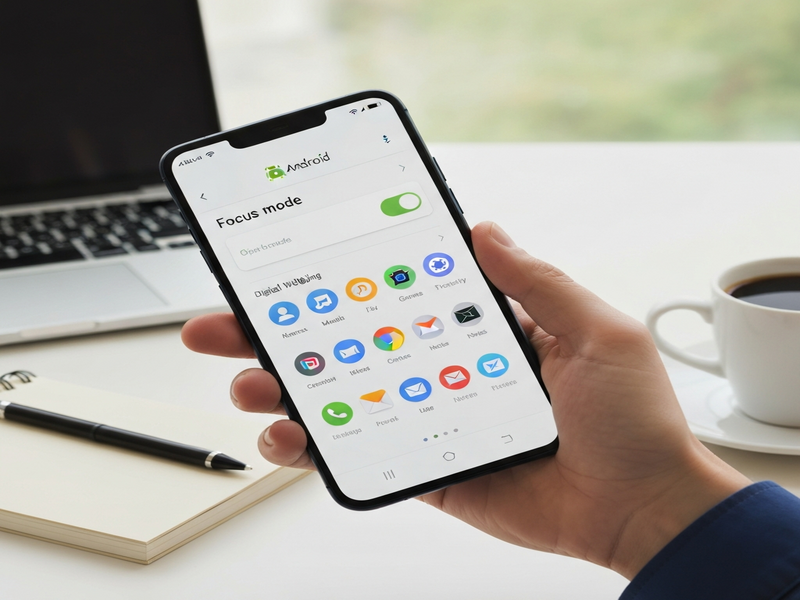
Why Focus Mode Matters for Deep Work
Deep work, as defined by productivity researcher Cal Newport, is the ability to concentrate without distraction on a cognitively demanding task. Android’s Focus Mode was originally designed to help users limit distractions from social apps, but its true power lies in its flexibility:
- Selective app blocking: Choose exactly which apps can interrupt you.
- Automatic activation: Schedule Focus Mode for specific times or trigger it via Quick Settings.
- Integration with Do Not Disturb: Silences calls, messages, and system alerts.
When paired with the “Pause notifications” toggle and the “Restrict background apps” option in the Battery settings, the device essentially becomes a distraction‑free workstation.
Step‑by‑Step: Enabling and Optimizing Focus Mode
1. Open Digital Wellbeing & Parental Controls
- Go to Settings > Digital Wellbeing & parental controls.
- Tap Focus mode at the bottom of the screen.
2. Choose Your Distraction‑Free Apps
- Select apps that typically pull your attention (e.g., Instagram, Twitter, YouTube).
- Leave productivity tools (e.g., AI SEO Analyzer, AI Article Copywriter) unchecked so they remain accessible.
3. Activate “Pause notifications”
Inside the same menu, toggle Pause notifications. This silences all push notifications from the selected apps while Focus Mode is active.
4. Restrict Background Activity (Battery Settings)
- Navigate to Settings > Battery > Battery usage.
- Tap the three‑dot menu and choose Battery optimization.
- Select “All apps”, find the same distraction apps, and set them to Optimized (or “Restricted”) to prevent background processes.
5. Schedule or Manually Trigger Focus Mode
You can add a Quick Settings tile for instant activation or schedule it for your peak productivity windows (e.g., 9 am‑12 pm). To add the tile:
- Pull down the notification shade, tap the edit (pencil) icon.
- Drag the Focus mode tile into the active area.
Real‑World Use Cases & Productivity Gains
Below are three scenarios where the Focus Mode + background‑restriction combo shines for Android power users.
A. Remote Software Engineer
Jane spends her mornings writing code in Web app editor on UBOS. By enabling Focus Mode for social media and messaging apps, she reports a 30% reduction in context‑switching time, allowing her to push more features before lunch.
B. Content Marketer
Mark uses the AI marketing agents to draft copy. With notifications paused, his brainstorming sessions last longer, and the quality of headlines improves, as measured by a 15% higher click‑through rate on newsletters.
C. Startup Founder
Lina runs a lean startup using UBOS for startups. She schedules Focus Mode during investor‑prep windows, eliminating interruptions from email and chat, which helped her close a seed round 2 weeks faster.
D. SMB Operations Manager
Carlos manages daily operations with UBOS solutions for SMBs. By restricting background sync of non‑essential apps, his device’s battery lasts through back‑to‑back client calls, reducing the need for mid‑day recharges.
Troubleshooting & Common Issues
Even a well‑designed feature can stumble. Here’s a quick FAQ to keep your Focus Mode humming.
Q1: Focus Mode doesn’t silence calls from selected contacts.
Ensure that Do Not Disturb is set to “Allow calls from None” or “Favorites only” while Focus Mode is active. You can adjust this under Settings > Sound & vibration > Do Not Disturb.
Q2: Some apps still run in the background.
Double‑check the Battery optimization list. Certain system apps (e.g., Google Play Services) cannot be fully restricted, but you can limit their impact by disabling “Background activity” for each app individually.
Q3: The Quick Settings tile disappears after a reboot.
Re‑add the tile following the steps in Section 5. Android sometimes resets custom tiles after major OS updates; keep a note of the process.
Q4: I notice slower app launch times.
When background processes are heavily restricted, the first launch may take a moment to initialize. This is a trade‑off for longer battery life and fewer interruptions. Consider whitelisting essential productivity apps.
Conclusion: Turn Your Android Into a Deep‑Work Engine
The under‑appreciated Focus Mode setting, when combined with notification pausing and background‑app restriction, transforms any Android device into a focused workstation. For professionals who rely on mobile productivity, this simple configuration can shave minutes off every task, boost concentration, and ultimately drive better results.
Ready to supercharge your workflow even further? Explore the UBOS platform overview for AI‑powered automation, or try the Workflow automation studio to build custom shortcuts that trigger Focus Mode automatically when you open a specific project. Need a quick start? Browse the UBOS templates for quick start and launch a productivity‑centric app in minutes.
If you’re a startup, a small business, or an enterprise looking to embed AI into daily operations, check out Enterprise AI platform by UBOS or join the UBOS partner program to stay ahead of the curve.
Start today: enable Focus Mode, silence the noise, and experience the power of uninterrupted deep work on your Android device.