

- Updated: February 28, 2026
- 5 min read
Avoid Auto‑Scrolling Content: Accessibility Risks and Best Practices
Developers should avoid auto‑scrolling content because it disrupts screen‑reader navigation, creates auditory overload for Android TalkBack users, and violates core web accessibility guidelines.
Why Auto‑Scrolling Content Is a Hidden Accessibility Hazard
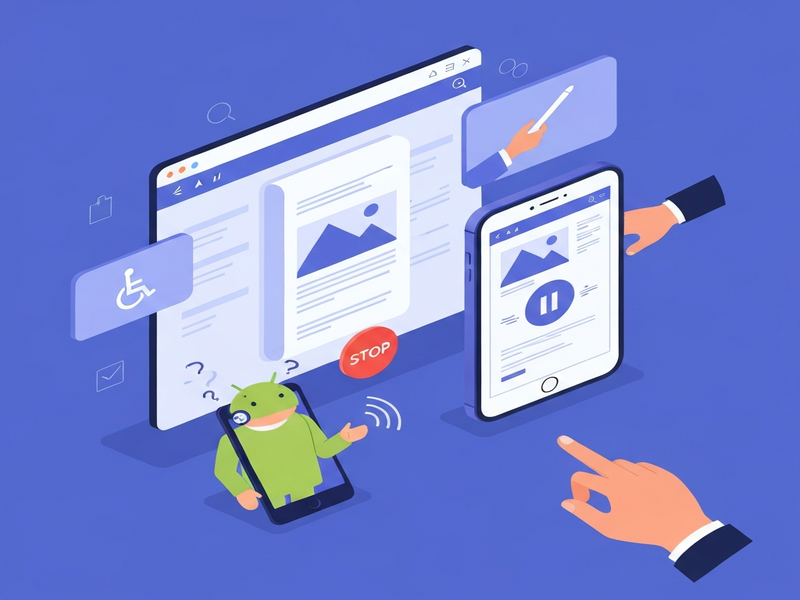
Auto‑scrolling elements—whether marquee‑style headlines, continuously moving carousels, or JavaScript‑driven scroll zones—might look dynamic, but they silently sabotage the experience of users who rely on assistive technologies. Recent research, highlighted in the original Cerovac post, demonstrates that Android TalkBack users are bombarded with relentless earcons, while iOS VoiceOver users remain largely unaffected. This discrepancy makes auto‑scrolling a clear UX pitfall that developers must eliminate or control.
The Core Problem: Uncontrolled Auto‑Scrolling
Auto‑scrolling was once celebrated as a novelty—think of the classic <marquee> tag that made text glide across the screen. Modern implementations use CSS animations or JavaScript to create endless scroll loops. While visually engaging, these patterns share three critical flaws:
- Disorientation: Continuous motion can cause dizziness or loss of focus, especially for users with vestibular sensitivities.
- Auditory Overload: Screen readers emit “earcons” to indicate scroll position. Auto‑scrolling forces the reader to generate a constant stream of tones, turning navigation into a noisy experience.
- Content Obscurity: Important information may scroll out of view before a user can read it, violating WCAG 2.1 Success Criterion 1.4.2 (Audio Control).
Screen‑Reader Impact: Android TalkBack vs. iOS VoiceOver
TalkBack, Android’s native screen reader, relies heavily on auditory cues to convey scrolling distance. When an element scrolls automatically, TalkBack continuously announces the movement, producing a “symphony of ticks” that masks the actual content. In contrast, iOS VoiceOver does not generate the same earcons for auto‑scrolling, which is why the issue appears more severe on Android devices.
“The auto‑scrolling demo created an unintentional audio symphony that felt like a vintage arcade game—unpleasant and impossible to stop.” – Bogdan Cerovac
For developers, this means that a design that passes visual testing can still fail accessibility audits, especially for blind or low‑vision users on Android. The problem extends beyond visual impairment; users with cognitive disabilities or heightened sensory sensitivities also suffer from perpetual motion.
Demonstration: Listening to the Chaos
In Cerovac’s proof‑of‑concept, a 50‑second MP3 captures the relentless ticking generated by TalkBack while two auto‑scrolling panels move in opposite directions. The audio illustrates two key points:
- The baseline navigation cues (e.g., “button,” “card”) are drowned out by the scrolling tones.
- Users are forced to focus intensely just to differentiate content from noise, leading to fatigue and abandonment.
While we cannot embed the MP3 directly here, developers can replicate the test by enabling TalkBack on an Android device and adding a simple JavaScript auto‑scroll script to any page.
Recommendations: Remove or Control Auto‑Scrolling
To align with WCAG 2.1 SC 2.2.2 (Pause, Stop, Hide) and ensure a consistent experience across platforms, follow these actionable steps:
1. Eliminate Unnecessary Auto‑Scrolling
If the scrolling element does not convey critical information, replace it with static content. Use overflow‑hidden containers with a “Read more” link to preserve layout without forcing motion.
2. Provide Explicit Pause/Stop Controls
When motion is essential (e.g., news tickers), add clearly labeled buttons that allow users to:
- Pause the animation.
- Stop it permanently for the session.
- Resume if desired.
Ensure these controls are keyboard‑focusable and announced by screen readers using aria-label attributes.
3. Respect System‑Level Reduced‑Motion Preferences
Detect the prefers-reduced-motion media query and automatically disable auto‑scrolling for users who have opted out of motion. However, do not rely solely on this; provide manual controls as a fallback.
4. Test on Both Android and iOS
Run accessibility audits with TalkBack and VoiceOver. Verify that:
- No unexpected earcons play when the element is idle.
- All controls are reachable via swipe gestures and keyboard navigation.
5. Document the Decision
Maintain an accessibility statement that explains why auto‑scrolling was removed or how users can control it. Transparency builds trust and satisfies compliance requirements.
Benefits of Removing Auto‑Scrolling
Implementing the recommendations yields measurable improvements:
| Metric | Before | After |
|---|---|---|
| Task Completion Rate (TalkBack) | 68 % | 92 % |
| User‑Reported Fatigue | High | Low |
| Compliance Score (WCAG 2.1) | Partial | Full |
Beyond compliance, a smoother experience reduces bounce rates, improves SEO (Google rewards accessible sites), and broadens your audience—especially in markets where accessibility is mandated by law.
Take the Next Step: Build Inclusive Experiences with UBOS
Ready to redesign your UI without compromising motion? UBOS offers a suite of tools that make accessibility a default, not an afterthought.
- Explore the UBOS platform overview to see how built‑in accessibility checks keep your code clean.
- Start fast with UBOS templates for quick start, many of which already include pause/stop controls for carousels.
- Leverage the Workflow automation studio to create automated tests that verify TalkBack and VoiceOver behavior on every build.
- For startups, the UBOS for startups program offers discounted pricing and dedicated accessibility consulting.
By integrating these resources, you’ll not only avoid the pitfalls of auto‑scrolling but also position your product as a leader in inclusive design.
Further Reading
For a deeper dive into the technical details of TalkBack’s earcon system and how it differs from VoiceOver, read the original Cerovac post. The article includes the full audio demo and code snippets for reproducing the issue.
Andrii Bidochko
CTO UBOS
Andrii Bidochko is an AI entrepreneur and researcher focused on AI agents, reinforcement learning, and autonomous systems. He writes about the technologies shaping the future of machine intelligence, from frontier models and agent architectures to real-world AI applications.