

- Updated: March 16, 2026
- 5 min read
Excel’s 1900 Leap‑Year Bug Explained – Why It Happens and How to Fix It
Excel 1900 Leap‑Year Bug Explained: Impact, Work‑arounds & Best Practices
Excel’s 1900 leap‑year bug is a historic compatibility quirk that treats the year 1900 as a leap year, causing a one‑day offset for dates before March 1 1900 and affecting certain date‑related functions.
Why the 1900 Leap‑Year Bug Still Matters
Although the bug dates back to the early 1980s, it continues to surface in modern Office 365 environments, especially when legacy spreadsheets are migrated or when analysts build date‑driven models that span centuries. Microsoft’s official documentation explains the origin of the issue and why it remains unchanged for backward compatibility. For a full technical reference, see the Microsoft Docs page on the 1900 date system.
Understanding this bug is essential for IT professionals, data analysts, and Office 365 administrators who need to guarantee data integrity across reports, dashboards, and automated workflows.
Historical Reason: Lotus 1‑2‑3 Compatibility
When Lotus 1‑2‑3 was the dominant spreadsheet in the early 1980s, its developers deliberately programmed the date system to assume that 1900 was a leap year. This simplification allowed the software to handle February 29 1900 as a valid date, even though the Gregorian calendar skipped that day.
Microsoft Multiplan and the first versions of Excel inherited the same serial‑date logic to ensure seamless file exchange with Lotus 1‑2‑3 users. By mirroring the leap‑year assumption, Excel could import and export worksheets without shifting dates—a critical feature for businesses that relied on cross‑platform data sharing.
The decision was later codified into Excel’s internal date serial number system, where 1 represents January 1 1900. Because the system treats 1900 as a leap year, the serial number 60 corresponds to the non‑existent date February 29 1900, and all subsequent dates are offset by one day.
Impact on Date Calculations and Common Scenarios
The bug’s effect is limited to dates prior to March 1 1900. In most contemporary business contexts, this window is rarely used, but the bug can still cause subtle errors in the following scenarios:
- Historical data analysis that includes dates from the 19th or early 20th century.
- Financial models that calculate age or tenure based on birth dates before 1900.
- Custom VBA scripts or Power Query transformations that generate serial numbers for legacy dates.
- Cross‑system data migrations where Excel’s serial dates are converted to Unix timestamps or SQL date types.
For functions such as WEEKDAY, DATE, and EDATE, the bug manifests only when the input date falls before 1900‑03‑01. For example, =WEEKDAY("1900-02-28") returns 2 (Monday) instead of the correct 1 (Sunday) because Excel believes February 28 1900 is the 59th day, not the 58th.
In practice, the most common complaint is a one‑day discrepancy when legacy datasets are imported into modern Excel workbooks, leading to mismatched totals in time‑based KPIs.
How to Work Around or Correct the Issue in Excel
Three practical strategies are recommended for IT teams and analysts:
-
Adjust Serial Numbers Programmatically. Use a simple offset formula to add or subtract one day for dates before March 1 1900. Example:
=IF(A2<DATE(1900,3,1),A2+1,A2)This approach preserves the original data while ensuring downstream calculations are accurate.
-
Leverage Power Query Date Transformations. In Power Query, you can replace the erroneous serial numbers with true dates using the
Table.TransformColumnsfunction:Table.TransformColumns(Source,{{"Date", each if _ < #date(1900,3,1) then Date.AddDays(_,1) else _}})Power Query’s engine respects the Gregorian calendar, eliminating the bug at the source.
- Adopt a Non‑Excel Date System for Legacy Data. When migrating large historical datasets, consider converting Excel serial dates to ISO‑8601 strings or Unix epoch values before import. This sidesteps the bug entirely and aligns with modern data warehouses.
It’s important to note that Microsoft deliberately retains the bug to avoid breaking compatibility with millions of existing workbooks. Therefore, any “fix” must be applied at the workbook or data‑pipeline level rather than expecting a native Excel setting.
Illustration: Visualizing the 1900 Leap‑Year Offset
The diagram below highlights the serial‑date gap created by the fictitious February 29 1900. Notice how dates after this point are shifted by one day.
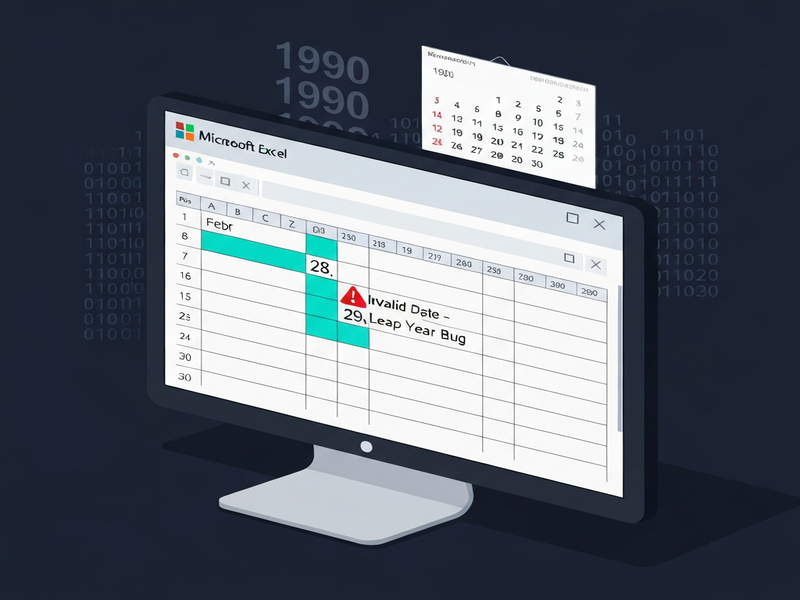
*Illustration generated by UBOS AI to clarify the date offset caused by the 1900 leap‑year bug.
Related UBOS Resources for Data‑Driven Teams
While you’re troubleshooting Excel date quirks, you might also explore how UBOS can streamline your data workflows and AI‑enhanced reporting:
- Discover the UBOS platform overview for a unified environment that integrates spreadsheets, databases, and AI agents.
- Learn how AI marketing agents can automate campaign analytics, reducing manual date‑handling errors.
- Review the UBOS pricing plans to find a tier that matches your organization’s scale—from startups to enterprise.
These tools complement Excel by providing robust data validation, version control, and AI‑driven insights that help you avoid legacy pitfalls like the 1900 leap‑year bug.
Conclusion: Managing the 1900 Leap‑Year Bug in Modern Workflows
The Excel 1900 leap‑year bug is a legacy artifact that persists for compatibility reasons. Although its practical impact is limited to dates before March 1 1900, the bug can still cause data‑integrity issues in historical analyses and automated pipelines. By applying simple offset formulas, leveraging Power Query transformations, or migrating to modern date representations, IT professionals and analysts can neutralize the bug’s effect without disrupting existing workbooks.
Staying aware of this quirk—and pairing Excel with platforms like UBOS homepage that offer AI‑enhanced data validation—ensures your reports remain accurate, your dashboards stay reliable, and your organization avoids costly date‑related errors.
For ongoing tips on Excel, Office 365, and AI‑driven data management, follow UBOS’s news feed and explore our extensive template marketplace.
Andrii Bidochko
CTO UBOS
Andrii Bidochko is an AI entrepreneur and researcher focused on AI agents, reinforcement learning, and autonomous systems. He writes about the technologies shaping the future of machine intelligence, from frontier models and agent architectures to real-world AI applications.