

- Updated: January 31, 2026
- 7 min read
Creative Ways to Repurpose an Old Chromecast
You can transform an old Chromecast into a digital photo frame, a smart‑home hub, a DIY security camera, a retro‑gaming console, or even a personal media server—all with free or low‑cost software and a few simple steps.
Why Repurpose Your Chromecast? – A Quick Recap of Android Police
Android Police recently highlighted a wave of Chromecast hacks that breathe new life into devices that have been gathering dust in living‑room cabinets. The article demonstrates how the modest streaming stick, originally built for casting video from phones to TVs, can be re‑engineered into versatile home‑automation tools. By leveraging open‑source apps, Android TV’s built‑in Chrome browser, and a sprinkle of creativity, hobbyists are turning obsolete hardware into functional, cost‑effective gadgets.
These hacks align perfectly with the DIY spirit of tech enthusiasts who love to tinker, save money, and reduce electronic waste. Below, we expand on the most popular repurposing ideas, add practical benefits and limitations, and provide a step‑by‑step guide to get you started—plus we’ll show how UBOS homepage can streamline the process with its low‑code platform.
1️⃣ Digital Photo Frame – Turn Your TV into a Slideshow Hub
Using a Chromecast as a constantly‑on photo frame is one of the simplest and most visually rewarding hacks. By installing a lightweight Android TV app such as Photo Frame or using a custom Chrome URL that cycles through a Google Photos album, you can display family memories, artwork, or product showcases 24/7.
How It Works
- Connect the Chromecast to a power source that stays on (USB‑C charger or wall adapter).
- Open the Chrome browser on the device and navigate to a public Google Photos album URL.
- Enable “Full‑screen” mode and set the screen‑saver timeout to “Never”.
- Optionally, use UBOS templates for quick start to create a custom web page that pulls images from a cloud bucket and adds transition effects.
Benefits
- Low power consumption: Chromecast draws < 2 W when idle.
- Zero‑cost software: All tools are free or open source.
- Remote updates: Add new photos from any device; the frame updates instantly.
Potential Limitations
- Requires a stable Wi‑Fi connection.
- Image resolution is limited to the TV’s native resolution.
- Chromecast’s Android TV environment may reboot after long uptimes; a simple watchdog script can mitigate this.
2️⃣ Smart Home Hub – Centralize Your IoT Devices
Turn the Chromecast into a lightweight smart‑home controller by installing ChatGPT and Telegram integration or using Telegram integration on UBOS. This setup lets you issue voice or text commands to control lights, thermostats, and sensors via a single screen.
Key Components
- UBOS Workflow Automation Studio: Build automation flows that react to sensor data.
- OpenAI ChatGPT integration: Natural‑language processing for conversational control.
- ElevenLabs AI voice integration: Generate spoken alerts for events like “Front door opened”.
Why It Works
The Chromecast runs a stripped‑down Android OS, which can host a lightweight web server or a progressive web app (PWA). By deploying a custom UI with the Web app editor on UBOS, you get a touch‑friendly dashboard that lives on your TV.
Pros & Cons
| Pros | Cons |
|---|---|
| Unified visual control panel. | Limited processing power for heavy AI models. |
| Works with existing TV display. | Requires occasional firmware updates. |
3️⃣ DIY Security Camera – Keep an Eye on Your Space
By installing a lightweight IP‑camera app (e.g., IP Webcam) on the Chromecast, you can stream live video to any browser or mobile device. Pair this with motion‑detection scripts and push notifications via Telegram for a budget‑friendly surveillance system.
Setup Overview
- Side‑load the IP Webcam APK onto the Chromecast using UBOS platform overview.
- Configure the app to use the device’s built‑in microphone for audio alerts.
- Connect the stream URL to a Workflow automation studio flow that sends a Telegram message when motion is detected.
- Optionally, store footage in a Chroma DB integration for quick retrieval.
Advantages
- Cost‑effective: Reuses hardware you already own.
- Scalable: Add multiple Chromecasts for multi‑room coverage.
- Customizable alerts via OpenAI ChatGPT integration.
Drawbacks
- Video quality limited to 720p on older models.
- Continuous streaming may increase power draw.
- Privacy concerns if the stream is exposed to the internet without proper authentication.
4️⃣ Retro Gaming Console – Play Classic Games on Your TV
Emulators such as RetroArch can run on Android TV, turning the Chromecast into a plug‑and‑play retro console. Pair it with a Bluetooth controller, and you have a nostalgic arcade without buying a dedicated box.
Implementation Steps
- Enable developer mode on the Chromecast and install RetroArch via side‑loading.
- Upload ROM files to a cloud storage bucket and point RetroArch to that location.
- Use the AI Video Generator to create quick tutorial videos for your friends.
This hack is especially popular among families looking for a safe, ad‑free gaming environment for kids.
5️⃣ Personal Media Server – Stream Your Library Anywhere
By installing Plex or Jellyfin on the Chromecast (via a lightweight Docker container on a connected Raspberry Pi that forwards the UI), you can turn the device into a dedicated media hub. The TV becomes a one‑click portal for movies, music, and podcasts.
Why Use UBOS?
UBOS’s Enterprise AI platform by UBOS offers container orchestration that simplifies deploying Plex on edge devices. You can manage updates, monitor health, and scale across multiple Chromecasts from a single dashboard.
Overall Benefits & Limitations of Chromecast Hacks
Key Benefits
- Extends the lifespan of legacy hardware.
- Minimal upfront cost – often just a power adapter.
- Leverages existing Wi‑Fi infrastructure.
- Integrates with modern AI services via UBOS.
- Encourages sustainable, DIY culture.
Common Limitations
- Older Chromecast models lack USB‑C power delivery.
- Processing power is modest; heavy AI workloads need cloud offload.
- Firmware updates can reset custom configurations.
- Limited storage – external USB drives or network shares are required for large media libraries.
Step‑by‑Step Guide to Repurpose Your Chromecast
- Gather Materials: Chromecast, power adapter, Wi‑Fi network, optional USB‑OTG hub.
- Enable Developer Mode: Open the Google Home app → Device settings → “Enable developer options”.
- Install UBOS: Use the UBOS solutions for SMBs guide to set up a local instance that will host your automation scripts.
- Select a Use‑Case: Choose from the hacks above (photo frame, hub, camera, etc.).
- Side‑Load Required Apps: Upload APKs via UBOS platform overview or ADB.
- Configure Automation: Build flows in the Workflow automation studio to handle triggers (e.g., motion detection → Telegram alert).
- Test & Optimize: Verify stability, set screen‑saver timeout, and enable watchdog scripts.
- Document & Share: Use the AI Video Generator to create a quick walkthrough for your community.
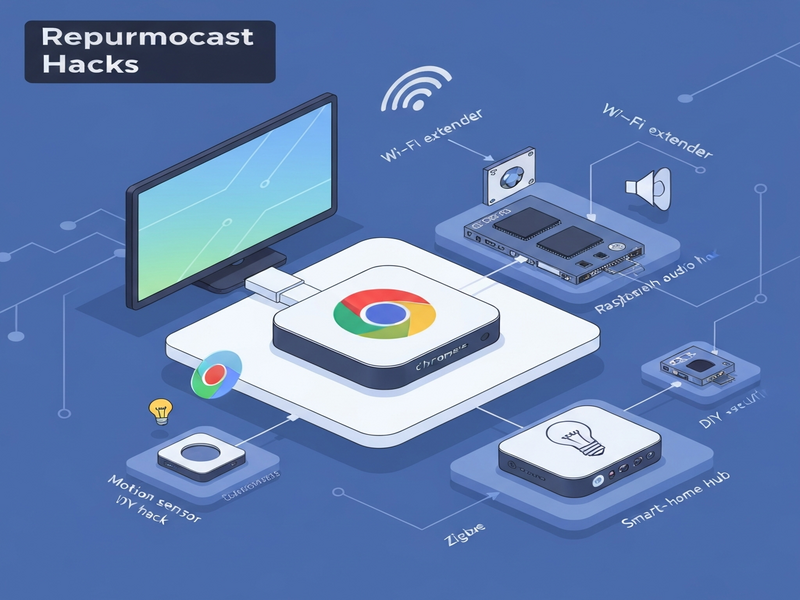
Figure: Creative uses for old Chromecast devices – from photo frames to smart‑home hubs.
For the original reporting and additional technical details, see the Android Police article on new uses for old Chromecast.
Further Reading & Tools on UBOS
- About UBOS – Learn how our platform empowers DIY developers.
- UBOS pricing plans – Find a free tier that fits hobby projects.
- UBOS partner program – Join a community of creators sharing templates.
- UBOS portfolio examples – See real‑world deployments of similar hacks.
- AI SEO Analyzer – Optimize your own project pages for search.
- AI YouTube Comment Analysis tool – Gauge community feedback on your tutorial videos.
Start Your Chromecast Revival Today!
Whether you’re a seasoned maker or a curious newcomer, repurposing an old Chromecast is a low‑risk way to explore IoT, AI, and low‑code development. Dive into the Web app editor on UBOS, spin up a AI Chatbot template for voice control, and share your results with the community.
Ready to give your old Chromecast a second life? Visit the UBOS homepage now and start building your next smart‑home masterpiece.