

- Updated: February 19, 2026
- 7 min read
Chrome adds Split View, PDF annotations and Save to Chrome – Boosting productivity in the browser wars
Chrome’s new productivity features—Split View, PDF annotations, and Save to Chrome—let users multitask, edit PDFs, and store content directly in the browser, boosting efficiency for tech‑savvy professionals.
Introduction: Why Chrome’s Updates Matter Now
In the rapidly evolving landscape of web browsers, Google Chrome remains the market leader, but it can’t rest on its laurels. With AI‑driven competitors and niche browsers vying for attention, Google has rolled out a trio of productivity‑focused tools designed to keep power users in the Chrome ecosystem. These features—Split View, PDF annotations, and Save to Chrome—address everyday workflow bottlenecks and signal Chrome’s commitment to becoming a true work platform, not just a content viewer.
For professionals who juggle research, reporting, and real‑time collaboration, the new capabilities promise a smoother, more integrated experience. Below, we break down each feature, explore the strategic context of the browser wars, and show how you can start using them today.
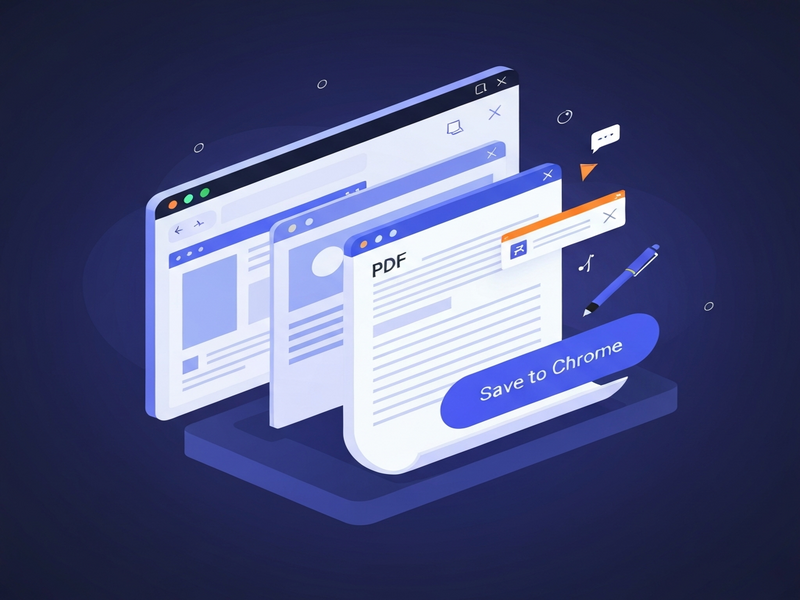
Chrome Split View: Multitasking Redefined
Split View lets you place two web pages side‑by‑side within a single Chrome tab. The interface works like a virtual desktop, snapping the first page to the left and the second to the right. This eliminates the need to constantly switch windows or juggle multiple monitors.
How to Activate Split View
- Drag a tab to the left or right edge of the Chrome window until a translucent outline appears.
- Release the mouse button; the tab will lock into place.
- Open a second tab and repeat the drag‑to‑edge action on the opposite side.
- To exit, right‑click anywhere in the split area and select “Close Split View.”
Power users can also right‑click a link and choose “Open Link in Split View,” which instantly creates a two‑pane layout without manual dragging. This shortcut is especially handy when researching a topic while drafting a document in a web‑based editor.
“Split View turns Chrome into a lightweight dual‑monitor setup, perfect for analysts who need to compare data sets side‑by‑side.” – About UBOS
PDF Annotations Directly in the Browser
Chrome now includes a built‑in PDF editor that supports highlighting, adding sticky notes, and drawing shapes—all without leaving the browser. The feature is accessible via the standard PDF viewer toolbar, where a new “Annotate” button appears when a PDF is opened.
Key Annotation Tools
- Highlight: Choose from multiple colors to emphasize text.
- Sticky Note: Attach comments that float over the document.
- Freehand Drawing: Sketch diagrams or signatures with a mouse or stylus.
- Text Box: Insert editable text directly onto the PDF.
These tools are ideal for contract reviews, academic research, and quick note‑taking. Once annotated, the PDF can be saved locally, exported as a new file, or—thanks to the next feature—sent straight to your Google Drive.
Save to Chrome: One‑Click Cloud Storage
The “Save to Chrome” button appears in the Chrome toolbar when you view a PDF, image, or any downloadable content. Clicking it stores the file in a dedicated “Saved from Chrome” folder inside your Google Drive, making retrieval painless and keeping your local disk clutter‑free.
Why Save to Chrome Beats Traditional Downloads
- Instant Organization: Files are automatically grouped, eliminating manual folder creation.
- Cross‑Device Access: Your saved items follow you to any device logged into the same Google account.
- Version Control: Google Drive’s revision history lets you revert to earlier versions of a saved PDF.
- Collaboration Ready: Share the saved file directly from Drive with teammates.
For remote teams, this feature reduces the friction of exchanging documents and ensures that the latest version is always at hand.
Browser Wars: The Competitive Landscape
Chrome’s new tools arrive amid an intensifying “browser wars” scenario. AI‑first browsers such as OpenAI ChatGPT integration and ChatGPT and Telegram integration are positioning themselves as intelligent assistants that can browse, summarize, and act on web content.
Microsoft Edge has leaned heavily on its Copilot integration, while Apple’s Safari focuses on privacy‑centric features. Meanwhile, niche players like Chroma DB integration are building vector‑search capabilities directly into the browser.
Google’s response is twofold: embed AI where it adds immediate value (e.g., Gemini in the address bar) and reinforce core productivity workflows that keep users within Chrome. By offering Split View, PDF annotations, and Save to Chrome, Google aims to reduce the incentive for power users to migrate to specialized tools.
How These Features Stack Up Against Competitors
| Feature | Chrome | Edge (Copilot) | Safari |
|---|---|---|---|
| Split‑Screen | Native Split View | Side‑by‑Side Tabs (beta) | Not available |
| PDF Annotation | Highlight, notes, drawing | Limited to highlight | View‑only |
| Save to Cloud | Save to Drive | Save to OneDrive | iCloud integration (download only) |
Chrome’s integrated approach gives it a clear edge for users already entrenched in Google’s ecosystem, especially when combined with AI assistants that can summon documents from Drive or summarize annotated PDFs on the fly.
Practical Use Cases for Professionals
Below are three scenarios that illustrate how the new features can streamline daily workflows.
1. Market Research Analyst
An analyst can open a competitor’s website in the left pane while keeping a Google Sheet open on the right. Using the PDF annotation tool, they can highlight key data points in a downloaded market report, add sticky notes, and then click “Save to Chrome” to store the annotated file directly in a shared Drive folder for the whole team.
2. Remote Project Manager
During a video call, the manager can keep the meeting transcript (exported as PDF) in the left pane, annotate action items in real time, and instantly save the updated PDF to the project’s Drive space. The team receives a notification and can start working on the tasks without leaving the browser.
3. Content Creator & SEO Specialist
SEO professionals can open a content brief in one pane and the AI SEO Analyzer tool in the other. Highlighting keyword gaps directly on the PDF and saving the annotated version to Drive creates a living brief that evolves with each iteration.
Leveraging Chrome Updates Within the UBOS Platform
UBOS users can amplify Chrome’s productivity suite by integrating it with our low‑code UBOS platform overview. For example, a workflow built in the Workflow automation studio can automatically fetch newly saved PDFs from Drive, run them through the ElevenLabs AI voice integration, and email a summary to stakeholders.
Developers can also use the Web app editor on UBOS to create custom dashboards that display a user’s “Saved from Chrome” folder, turning a simple storage location into a collaborative knowledge base.
What’s Next and How to Get Started
Chrome’s productivity upgrades are already rolling out to stable channels. To enable Split View and PDF annotations, ensure your Chrome version is 127 or newer. The “Save to Chrome” button appears automatically when you open a downloadable file.
Ready to explore the full potential?
- Visit the Chrome updates page for step‑by‑step guides.
- Check out the latest Tech News for related announcements.
- Explore our UBOS templates for quick start to build automation around your new workflow.
- Review our UBOS pricing plans to find a tier that matches your team’s size.
For a deeper dive into the strategic implications of these updates, read the original TechCrunch article that first reported the launch.
Stay ahead of the curve—activate Chrome’s new tools today and watch your productivity soar.
Explore more AI‑enhanced solutions on the UBOS homepage and discover how our AI marketing agents can further streamline your campaigns.