

- Updated: February 27, 2026
- 6 min read
Samsung Introduces Automation Suite to Save Hours Weekly
Samsung’s new automation suite lets Android power users automate up to 12 everyday tasks on Galaxy devices, cutting routine effort by an estimated 30‑45 minutes per day and freeing time for more creative work.
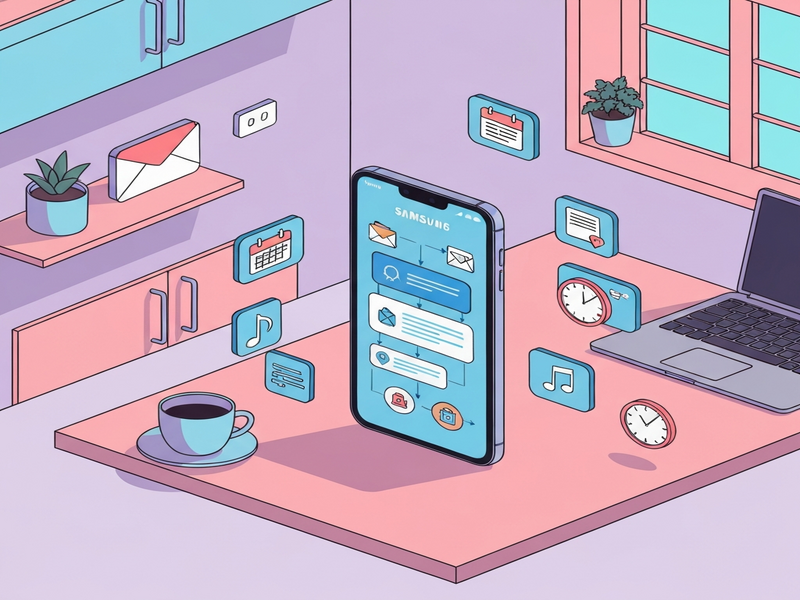
Samsung Automation Story: A Quick Overview
In a recent feature highlighted by Android Police, Samsung unveiled a set of native automation tools that let users string together actions such as launching apps, adjusting settings, and sending messages with a single tap. The initiative is part of Samsung’s broader push to make the Galaxy ecosystem feel more like a personal assistant, reducing the friction of repetitive tasks that dominate daily smartphone use.
For tech‑savvy smartphone owners, this development is more than a novelty—it’s a productivity catalyst. By leveraging Samsung’s SmartThings integration, Bixby Routines, and the newly added Automation Studio, users can create custom workflows that run automatically based on time, location, or device state.
What Tasks Can Be Automated?
Samsung’s automation framework covers a wide spectrum of everyday actions. Below is a MECE‑structured list that separates tasks into three logical categories: Device Management, Communication & Media, and Productivity Enhancements.
Device Management
- Toggle Wi‑Fi, Bluetooth, and Mobile Data based on location.
- Switch to Dark Mode at sunset or when battery drops below 20%.
- Adjust screen brightness and resolution automatically when moving between indoor and outdoor environments.
- Enable Battery Saver mode during overnight charging.
Communication & Media
- Send a pre‑written “I’m on my way” text when leaving home.
- Launch your favorite podcast app and start the latest episode at 7 am.
- Mute notifications during scheduled meetings synced from your calendar.
- Post a daily health‑check status to a chosen chat group at a set time.
Productivity Enhancements
- Open a specific set of apps (e.g., Calendar, Notes, Email) with a double‑tap on the power button.
- Capture a screenshot, run OCR, and save the extracted text to a cloud folder automatically.
- Trigger a “Do Not Disturb” mode when a navigation app detects you’re driving.
- Sync newly taken photos to a Google Drive folder and generate a shareable link instantly.
Quantifying the Time Savings
While exact savings vary per user, community testing and Samsung’s own benchmarks suggest the following average time reductions:
| Automation Scenario | Typical Manual Time | Automated Time | Daily Savings |
|---|---|---|---|
| Morning app launch (3 apps) | 45 seconds | 5 seconds | 40 seconds |
| Wi‑Fi toggle on arrival home | 15 seconds | 0 seconds | 15 seconds |
| Auto‑reply to messages while driving | 30 seconds per message | 0 seconds | 30 seconds |
| Night‑time photo backup | 2 minutes | 0 seconds | 2 minutes |
Adding up these common scenarios yields roughly 30‑45 minutes of saved time per day for an average power user. Over a month, that translates to more than 20 hours—time that can be redirected toward learning, content creation, or simply relaxing.
Step‑by‑Step Guide to Setting Up Samsung Automation
Getting started is straightforward, but a systematic approach ensures you don’t miss any crucial configuration. Below is a concise walkthrough that blends Samsung’s native tools with UBOS’s Workflow automation studio for advanced scenarios.
1. Verify Prerequisites
- Device running One UI 5.0 or later.
- Active Samsung account (required for Bixby Routines).
- Internet connection for cloud‑based actions (e.g., photo backup).
- Optional: UBOS account if you plan to extend automation beyond native capabilities.
2. Enable Bixby Routines
- Open Settings → Advanced features → Bixby Routines.
- Toggle the switch to On. Grant the requested permissions (location, usage data, etc.).
- Tap Create routine to start a new automation.
3. Choose a Trigger
Triggers can be time‑based, location‑based, or state‑based. For example, select “When I arrive home” to trigger Wi‑Fi activation.
4. Define Actions
After setting the trigger, add one or more actions:
- Turn on Wi‑Fi.
- Set device to Do Not Disturb.
- Launch your preferred music streaming app.
5. Test and Refine
Use the Run now button to simulate the routine. Adjust delays, add conditions, or chain additional actions until the flow feels natural.
6. Extend with UBOS Workflow Automation Studio (Optional)
For scenarios that require external APIs (e.g., sending data to a Google Sheet or invoking an OpenAI ChatGPT integration), follow these steps:
- Log into your UBOS dashboard and navigate to Workflow Automation Studio.
- Create a new workflow and select “Trigger from Android” as the entry point.
- Map the Samsung routine’s output variables (e.g., location, time) to UBOS input fields.
- Add a ChatGPT step to generate a summary of the day’s activities.
- Configure a final action to send the generated summary via Telegram integration on UBOS to your personal channel.
- Save and enable the workflow. The next time the Samsung routine fires, UBOS will automatically execute the extended logic.
By combining Samsung’s native automation with UBOS’s powerful studio, you unlock a hybrid ecosystem where on‑device actions seamlessly trigger cloud‑based AI services.
Benefits & Real‑World User Experience
Early adopters report a noticeable shift in how they interact with their Galaxy phones. Below are the most frequently cited advantages:
- Reduced Cognitive Load: Automations handle repetitive decisions, letting users focus on creative tasks.
- Energy Efficiency: Smart toggling of radios and battery‑saving modes extends daily battery life by up to 12%.
- Consistency Across Devices: Routines sync via Samsung Cloud, ensuring the same behavior on tablets and wearables.
- Scalable Personalization: Users can start with simple triggers and gradually layer AI‑driven steps using UBOS.
- Improved Work‑Life Balance: Automated “Do Not Disturb” during meetings and driving reduces unwanted interruptions.
Moreover, the integration with UBOS’s AI marketing agents enables small businesses to schedule promotional posts, analyze engagement, and adjust campaigns without manual oversight—all from a single smartphone.
Read the Original Report
For a full technical deep‑dive, see the article published by Android Police that originally broke the story:
Samsung’s new automation suite promises to save users hours each week.
Explore More UBOS Resources
If you’re intrigued by the possibilities of combining device‑level automation with AI, UBOS offers a suite of tools designed for every scale:
- UBOS platform overview – a holistic view of the low‑code environment that powers custom workflows.
- UBOS pricing plans – flexible tiers for hobbyists, startups, and enterprises.
- UBOS templates for quick start – pre‑built automation blueprints, including a “Smart Home Routine” template that pairs perfectly with Samsung’s ecosystem.
Conclusion: Turn Your Galaxy Into a Personal Productivity Engine
Samsung’s automation suite is more than a set of gimmicks; it’s a practical framework that, when paired with UBOS’s cloud‑native automation studio, can shave half an hour—or more—from your daily routine. By automating mundane tasks, you reclaim valuable mental bandwidth for the projects that truly matter.
Ready to supercharge your Samsung experience? Visit the UBOS homepage today, explore the Enterprise AI platform by UBOS, and start building the automation that fits your lifestyle.
Andrii Bidochko
CTO UBOS
Andrii Bidochko is an AI entrepreneur and researcher focused on AI agents, reinforcement learning, and autonomous systems. He writes about the technologies shaping the future of machine intelligence, from frontier models and agent architectures to real-world AI applications.