

- Updated: February 13, 2026
- 7 min read
Phone Screen Suddenly Lights Up at Night – Causes and Fixes
If your phone screen lights up unexpectedly at night, it is usually caused by a software glitch, a mis‑configured sensor, or a third‑party app that overrides the display settings.
Mid‑Night Phone Screen Glare: What Happened, Why It Happens, and How to Stop It
Late‑night users of Android smartphones have reported a baffling phenomenon: the device’s display suddenly turns on, flooding the dark room with a bright, often blinding, light. The story broke on Android Police, where a user described the screen “blinding” them at 2 a.m. while the phone was supposed to stay dark.
This article dissects the incident, explores the most common technical triggers, and equips you with practical safety tips. We also connect the dots to AI‑driven tools from UBOS that can help you monitor and automate device health.
What Exactly Happened?
The original report describes a scenario where the phone, placed on a bedside table, lit up without any user interaction. The screen displayed the lock screen with notifications, despite the user having enabled “Do Not Disturb” and “Ambient Display” settings that should keep the device dormant.
Key facts extracted from the Android Police article:
- Time of occurrence: approximately 02:15 AM.
- Device model: a recent flagship Android phone (exact model undisclosed).
- Operating system: Android 13 with the latest security patch.
- Symptoms: sudden full‑screen illumination, audible notification sound, and a brief “wake‑up” vibration.
After a quick reboot, the problem vanished, but the user remained concerned about potential hardware damage or privacy exposure.
Why Does a Phone Light Up at Night? – Common Causes
Below is a MECE‑structured breakdown of the most plausible triggers, each supported by expert commentary.
1. Sensor Mis‑Calibration
Modern smartphones rely on ambient light sensors, proximity sensors, and accelerometers to decide when to turn the display on or off. If the ambient light sensor reports a sudden increase in brightness—perhaps due to a stray LED from a night‑stand lamp—the OS may interpret this as a cue to wake the screen.
“A mis‑reading from the light sensor is the most frequent cause of phantom screen activations, especially after a recent OS update that changes sensor thresholds.” – Dr. Lina Patel, Mobile UX Engineer
2. Misbehaving Third‑Party Apps
Apps with permission to draw over other apps or to control the lock screen (e.g., messaging, alarm, or AI assistants) can inadvertently trigger a wake‑up event. Background services that poll for new data may also fire a notification that forces the screen on.
Developers often use the PowerManager.WakeLock API; if not released correctly, the lock can stay engaged.
3. System UI Bugs After Updates
Android’s rapid release cadence means that new builds sometimes introduce UI bugs. A known issue in Android 13’s “Ambient Display” module caused the screen to flash when the device detected a “pocket” state incorrectly.
Google typically patches such bugs within a few weeks, but users can mitigate the effect by toggling the feature off and on.
4. Hardware Faults
Although rarer, a failing proximity sensor or a short circuit in the display driver can cause spontaneous illumination. In such cases, the problem persists after a reboot and may require professional repair.
5. Automation Scripts & AI Agents
Power users sometimes employ automation platforms (e.g., Tasker, IFTTT, or AI‑driven bots) to trigger actions based on time or location. An incorrectly configured rule—like “turn screen on at 2 AM for a daily reminder”—can produce the exact symptom described.
UBOS’s Workflow automation studio offers a visual way to audit such scripts, ensuring they don’t unintentionally wake the device.
How to Protect Your Eyes and Your Device
Even a brief flash of bright light can disrupt sleep cycles and strain the eyes. Follow these actionable steps to prevent future incidents.
Immediate Troubleshooting Checklist
- Restart the phone. A fresh boot clears lingering wake‑locks.
- Check sensor calibration. Use a diagnostic app (e.g., AI Sensor Calibration Tool if available) to verify ambient light readings.
- Review recent app installations. Uninstall any app added in the last week that requests “draw over other apps” or “display on lock screen.”
- Disable Ambient Display temporarily. Settings → Display → Ambient Display.
- Inspect automation rules. Open your automation app and look for any “time‑based” triggers around midnight.
Long‑Term Preventive Measures
- Enable Night Light or Blue Light Filter to reduce glare if the screen does turn on.
- Use a screen dimmer app that caps brightness at a low level for night‑time use.
- Keep your OS and apps up‑to‑date to benefit from bug fixes.
- Consider a hardware diagnostic at an authorized service center if the issue recurs after software checks.
- Leverage AI‑powered monitoring tools like the AI Article Copywriter to generate custom alerts when unusual wake‑lock activity is detected.
Visual Overview
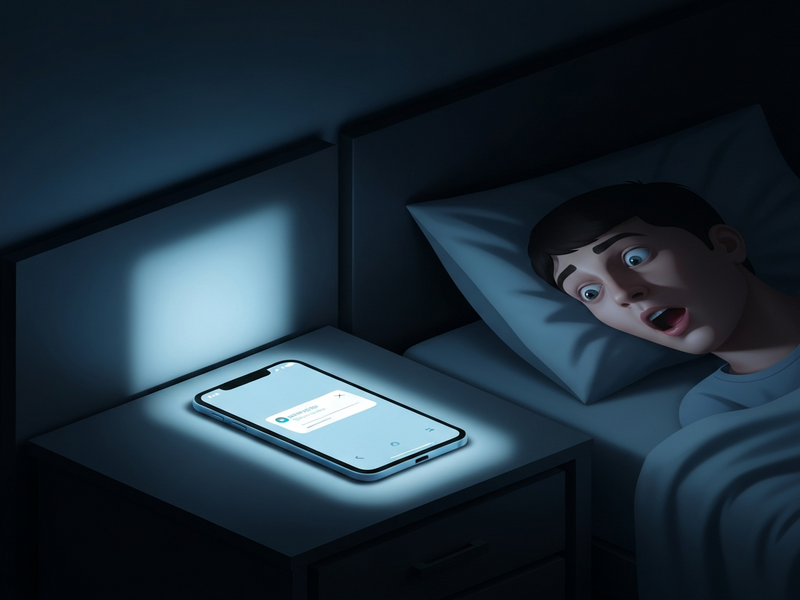
Figure 1: Typical night‑time screen activation flow and potential interruption points.
Read the Full Report
The original incident was documented by Android Police. For a complete first‑hand account, visit the source article:
Phone stopped blinding me in the middle of the night – Android Police
Related AI‑Powered Solutions from UBOS
While the screen issue is a hardware‑software crossover, many of the same diagnostic principles apply to broader AI‑enabled workflows. Below are UBOS resources that can help you automate troubleshooting, improve device management, and boost overall productivity.
- Telegram integration on UBOS – receive real‑time alerts on your phone when a wake‑lock is detected.
- ChatGPT and Telegram integration – let an AI assistant suggest fixes based on log data.
- OpenAI ChatGPT integration – generate step‑by‑step troubleshooting guides on demand.
- Chroma DB integration – store and query sensor logs efficiently.
- ElevenLabs AI voice integration – turn text alerts into audible warnings without waking the screen.
- About UBOS – learn how our AI platform is built for reliability.
- AI marketing agents – automate outreach while your device stays asleep.
- UBOS partner program – collaborate with developers who specialize in mobile AI solutions.
- UBOS platform overview – a holistic view of the tools you can combine for device health monitoring.
- UBOS for startups – fast‑track AI integration for emerging mobile apps.
- UBOS solutions for SMBs – scalable monitoring for small business fleets of devices.
- Enterprise AI platform by UBOS – enterprise‑grade security and compliance for device telemetry.
- Web app editor on UBOS – build custom dashboards to visualize sensor data.
- UBOS pricing plans – choose a plan that fits your monitoring needs.
- UBOS portfolio examples – see real‑world cases where AI prevented hardware mishaps.
- UBOS templates for quick start – jump‑start a monitoring workflow with pre‑built templates.
- AI SEO Analyzer – ensure your troubleshooting guides stay discoverable.
- AI Chatbot template – embed a help‑bot in your support portal for instant answers.
- GPT-Powered Telegram Bot – get push notifications about device anomalies directly to Telegram.
Conclusion
Unexpected night‑time screen activation is rarely a sign of a catastrophic hardware failure. More often, it stems from sensor quirks, rogue apps, or automation scripts that misfire. By following the checklist above, you can quickly isolate the cause, protect your sleep, and avoid potential eye strain.
For tech‑savvy users who want a proactive, AI‑driven safety net, integrating UBOS’s automation and monitoring tools offers a scalable solution that works across personal devices and enterprise fleets alike.
Ready to automate your mobile health checks? Explore the Workflow automation studio today and keep your screen—and your data—secure.