

- Updated: January 19, 2026
- 7 min read
How to Disable Spotlight and Siri on macOS Tahoe – Complete Guide
Yes – you can dramatically limit both Spotlight indexing and Siri activity in macOS Tahoe, but a complete shutdown requires disabling System Integrity Protection (SIP), which most users should avoid. By using built‑in System Settings toggles and a couple of Terminal commands you can reduce CPU, memory, and storage overhead while keeping the OS stable.
Why Tame Spotlight and Siri on macOS Tahoe?
macOS Tahoe (the upcoming release after Sonoma) continues Apple’s tradition of deep‑learning‑driven services. Spotlight constantly scans every volume for quick search, while Siri listens for voice requests and powers contextual suggestions. For power users, developers, or anyone running on limited SSD space, these background agents can become a noticeable drain on CPU cycles, battery life, and disk I/O.
The good news is that macOS provides official UI switches and documented mdutil commands that let you turn off indexing and mute Siri requests without breaking core functionality. Below we break down the process into clear, MECE‑structured steps, highlight the risks, and suggest best‑practice configurations for a leaner system.
Spotlight and Siri in macOS Tahoe – A Quick Overview
Spotlight Indexing
- Runs
mds,spotlightd, andmediaanalysisddaemons. - Creates hidden
.Spotlight‑V100folders on each volume. - Feeds Finder, Quick Look, and system‑wide search with instant results.
- Consumes CPU during initial indexing and periodic re‑indexing.
Siri Services
- Managed by
siriandsiri\_actionsdprocesses. - Activates on “Hey Siri”, keyboard shortcut, or menu bar click.
- Collects usage data for suggestions, dictation, and HomeKit control.
- Even when disabled in UI, background daemons remain active.
How to Disable or Limit Spotlight Indexing
1️⃣ System Settings Method (UI)
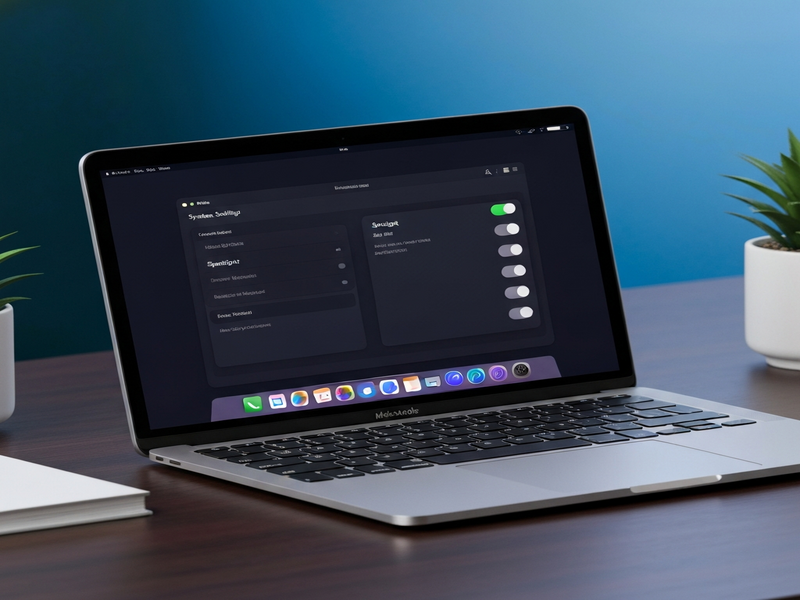
The quickest way to reduce Spotlight’s footprint is through the Settings pane:
- Open System Settings → Spotlight.
- Uncheck every category under “Search Results”.
- Navigate to the “Privacy” tab and drag any volumes you never want indexed.
This UI tweak stops most user‑visible results, but the indexing daemon still runs on mounted volumes and on the system volume. For a deeper cut, use Terminal.
2️⃣ Terminal Command: sudo mdutil -a -d
The mdutil utility controls Spotlight’s indexing and search behavior. The -d flag disables both indexing and on‑disk searching for every mounted volume.
sudo mdutil -a -dAfter running the command, you’ll see a confirmation similar to:
Indexing and searching disabled for volume /
Indexing and searching disabled for volume /System/Volumes/Data
The hidden .Spotlight‑V100/Store‑V2 folder remains, but it stays empty, eliminating disk churn.
3️⃣ Alternative: sudo mdutil -a -i off
This command only stops indexing (-i off) while leaving the search service active. It’s less thorough and may still return results from the Data volume, so we recommend the -d approach for most power users.
4️⃣ Verifying the Change
Run mdutil -s / to see the current status. A response of “Indexing disabled.” confirms success.
How to Disable or Limit Siri
1️⃣ System Settings (UI)
Apple still provides a toggle:
- Open System Settings → Siri & Spotlight → Siri.
- Turn off “Ask Siri” and “Siri Suggestions”.
- Optionally disable “Listen for ‘Hey Siri’”.
Even after these steps, background processes such as siri\_actionsd and siri\_knowledge still appear in Activity Monitor.
2️⃣ Terminal Tweaks
For a more aggressive reduction, you can unload the launch agents responsible for Siri:
sudo launchctl unload -w /System/Library/LaunchAgents/com.apple.siri.agent.plist
sudo launchctl unload -w /System/Library/LaunchDaemons/com.apple.siri\_actionsd.plist
Warning: Unloading these agents requires SIP to be disabled, which reduces system security. Most users should stop at the UI toggle.
3️⃣ Verifying Siri Processes
Open Activity Monitor and search for “siri”. If only siri\_agent remains, the service is effectively muted.
Risks, Compatibility, and System Integrity
- System Integrity Protection (SIP): Disabling SIP is the only way to permanently remove the daemons, but it opens the system to unsigned modifications and is not recommended for production machines.
- Feature Loss: Turning off Spotlight disables smart folders, Finder quick‑search, and some third‑party app integrations that rely on the index.
- Siri‑related APIs: Apps that use SiriKit (e.g., HomeKit shortcuts) will stop responding if the service is fully disabled.
- Future macOS Updates: Apple may re‑enable daemons during a system upgrade, so re‑run the commands after each major update.
Best‑Practice Checklist
| Task | Command / Action | When to Re‑apply |
|---|---|---|
| Disable UI Spotlight categories | System Settings → Spotlight → Uncheck all | After each macOS upgrade |
| Turn off Spotlight indexing & search | sudo mdutil -a -d |
Whenever you notice CPU spikes from mds |
| Mute Siri via Settings | System Settings → Siri & Spotlight → Siri → Off | Initial setup |
| Optional: Unload Siri launch agents | sudo launchctl unload -w … |
Only if you have SIP disabled |
By following the checklist you keep your Mac responsive while preserving essential functionality. Remember to re‑run mdutil after any major OS update, as Apple often resets indexing flags.
Take Your Automation Further with UBOS
If you’re already streamlining macOS, imagine what you could achieve with a dedicated AI‑powered automation platform. UBOS offers a suite of tools that let you build custom workflows, integrate AI services, and even generate code‑free apps.
UBOS homepage
Start exploring a unified AI platform that can host your own Spotlight‑free utilities or Siri‑less assistants.
UBOS platform overview
Learn how the platform’s modular architecture lets you plug in services like OpenAI ChatGPT integration without extra system overhead.
AI marketing agents
Automate content creation, SEO analysis, and social media posting—perfect for developers who have just trimmed down macOS services.
Workflow automation studio
Design zero‑code pipelines that react to file changes, system events, or even the absence of Spotlight indexing.
Web app editor on UBOS
Build a lightweight web UI to toggle macOS services remotely—ideal for IT admins managing multiple machines.
UBOS pricing plans
Find a plan that matches your startup budget or SMB needs while keeping your Mac lean.
UBOS for startups
Accelerate product launches by leveraging pre‑built AI templates like the AI SEO Analyzer or AI Article Copywriter.
UBOS solutions for SMBs
Deploy secure, low‑overhead AI assistants that respect your decision to keep macOS services minimal.
Enterprise AI platform by UBOS
Scale the same lightweight philosophy across fleets of Macs in a corporate environment.
UBOS partner program
Partner with us to co‑create macOS‑focused AI tools that respect user privacy and performance.
UBOS templates for quick start
Jump‑start projects with ready‑made templates such as AI Chatbot template or GPT‑Powered Telegram Bot.
Whether you’re a developer fine‑tuning macOS performance or a business looking to embed AI without the bloat, UBOS gives you the flexibility to stay in control.
Original Reporting
The technical details above are based on the investigative piece from Eclectic Light (January 16 2026). We’ve expanded the guide with actionable commands, risk analysis, and integration ideas for modern AI workflows.
Bottom Line
You can’t completely erase Spotlight or Siri from macOS Tahoe without compromising system integrity, but you can shrink their footprint dramatically using built‑in settings and the mdutil command. Pair these tweaks with a robust automation platform like UBOS to keep your Mac fast, secure, and ready for the next wave of AI‑driven productivity.