

- Updated: January 18, 2026
- 6 min read
YouTube Introduces New Parental Controls – What Parents Need to Know
YouTube’s new parental controls let parents restrict content, set screen‑time limits, and monitor activity across all devices in a single, easy‑to‑use dashboard.
Why YouTube’s Updated Parental Controls Matter for Modern Families
As video streaming becomes the default entertainment medium for children, tech‑savvy parents are demanding stronger safeguards. YouTube, the world’s largest video platform, has responded with a comprehensive suite of parental‑control features that go beyond the legacy YouTube Kids experience. These tools are designed to give families granular visibility into what’s being watched, enforce age‑appropriate limits, and provide peace of mind without sacrificing the platform’s rich educational content.
In this guide we break down the new controls, compare them with the previous generation, and show you step‑by‑step how to activate them. We also sprinkle in expert tips and relevant AI‑powered solutions from the UBOS homepage that can further enhance family safety online.
Quick Summary of YouTube’s New Parental Controls
- Unified family dashboard for all linked accounts.
- Content filters based on age ratings and custom keyword blocks.
- Screen‑time caps with optional “bedtime mode”.
- Real‑time activity logs and weekly summary emails.
- Remote pause and “watch‑only” mode for shared devices.
- Integration with Google Family Link for cross‑platform enforcement.
The new suite is built on Google’s AI moderation engine, which automatically flags inappropriate content and surfaces safer alternatives. For parents who already use AI tools in their workflow, the synergy is immediate.
Key Features & Benefits for Parents
Unified Family Dashboard
All child accounts appear on a single screen, allowing you to toggle restrictions, view watch history, and set limits without hopping between devices. This centralization reduces the risk of missed settings and simplifies family management.
Dynamic Content Filters
Filters now support both age‑based categories (e.g., “Kids”, “Teens”) and custom keyword blacklists. The AI engine learns from user feedback, continuously improving its detection accuracy.
Screen‑Time Management
Set daily watch limits per child, and enforce a “bedtime mode” that automatically disables playback after a chosen hour. Parents receive push notifications when limits are approached.
Activity Reporting
Weekly email digests summarize each child’s viewing habits, flagged videos, and time spent. The reports are exportable as CSV for deeper analysis or integration with third‑party monitoring tools.
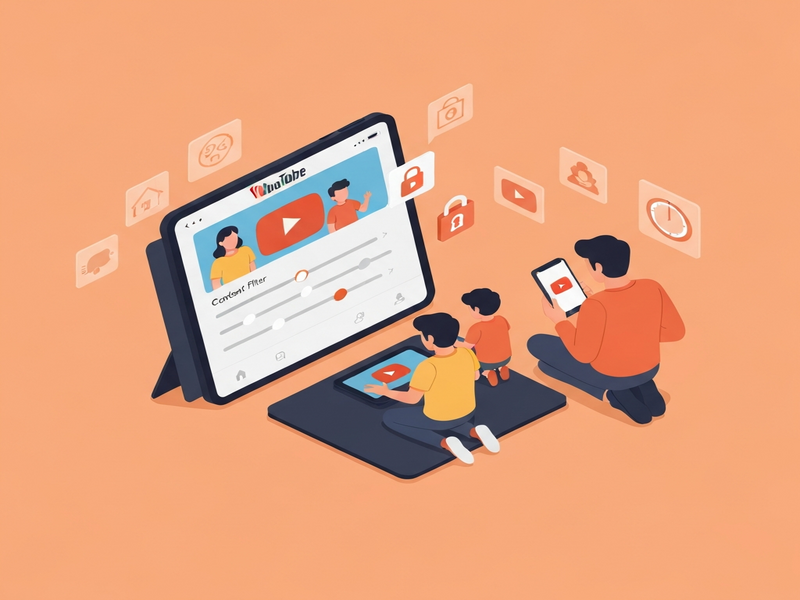
By leveraging these features, families can strike a balance between open exploration and safe consumption. Moreover, the new controls are compatible with existing Google Family Link settings, ensuring a seamless experience across Android, iOS, and web platforms.
How the New Suite Stacks Up Against the Old Controls
| Feature | Old Controls | New Controls |
|---|---|---|
| Dashboard | Separate app (YouTube Kids) or scattered settings. | Unified family dashboard within the main YouTube app. |
| Content Filtering | Static age categories only. | AI‑driven age + keyword filters, customizable per child. |
| Screen‑Time Limits | Limited to daily caps in Family Link. | Integrated caps with bedtime mode and real‑time alerts. |
| Reporting | Basic watch history view. | Weekly email digests, exportable logs, and AI‑summarized insights. |
The upgrade is not just cosmetic; it reflects Google’s investment in AI moderation and user‑centric design. Parents who previously relied on the separate YouTube Kids app will find the new controls more powerful and less fragmented.
Step‑by‑Step: Enabling YouTube’s New Parental Controls
- Open the YouTube app on a desktop or mobile device and tap your profile icon.
- Select Settings > Family and then Manage family group.
- Click Add a child or choose an existing child account to edit.
- Under Parental Controls, toggle Content Restrictions and choose the appropriate age band (e.g., “Kids” or “Teens”). Use the Custom Keywords field to block specific topics.
- Set Screen‑time limits by specifying daily minutes and a bedtime hour. Enable Bedtime Mode for automatic shutdown.
- Activate Activity Reports to receive weekly summaries via email. Optionally, enable Remote Pause for instant control.
- Save changes. The settings propagate instantly to all devices linked to the child’s Google account.
For families using third‑party automation, the new API endpoints can be hooked into the Workflow automation studio to trigger alerts in Slack or Microsoft Teams when a child exceeds a limit.
Expert Tips to Maximize Safety (and Leverage AI)
While YouTube’s native tools are robust, pairing them with AI‑driven services can give you an extra layer of insight:
- Use the AI SEO Analyzer to scan video titles and descriptions for hidden adult themes that might slip past YouTube’s filters.
- Deploy the AI Article Copywriter to generate weekly safety newsletters for your family, summarizing key findings from the activity reports.
- Integrate the AI Video Generator to create custom “watch‑only” playlists that reinforce educational goals.
- Run the AI YouTube Comment Analysis tool on the comment sections of your child’s favorite channels to flag toxic language before it reaches their feed.
- For visual learners, the AI Image Generator can produce engaging infographics that explain screen‑time rules in a kid‑friendly way.
If you’re already building custom dashboards, the Web app editor on UBOS lets you embed YouTube’s activity logs alongside your own analytics, creating a single pane of glass for family digital health.
Take Control Today – Start with YouTube, Then Expand with UBOS
The new parental controls are a game‑changer, but true digital safety is an ecosystem. Combine YouTube’s built‑in safeguards with UBOS’s AI marketing agents and the Enterprise AI platform by UBOS to monitor, automate, and report on all online activity in one place.
Ready to explore a smarter, safer digital home? Visit the About UBOS page to learn how our solutions empower families and businesses alike. Check out our UBOS pricing plans for a free trial, and browse the UBOS portfolio examples for real‑world success stories.
Remember, the best protection starts with knowledge. Enable the new controls today, and let AI do the heavy lifting so you can focus on what truly matters – quality time with your kids.
For the original announcement and technical details, see the Android Police article.
Explore More AI‑Powered Tools on UBOS
Telegram integration on UBOS
Receive instant alerts about your child’s YouTube activity directly in Telegram.
ChatGPT and Telegram integration
Leverage ChatGPT to generate personalized safety summaries on demand.
OpenAI ChatGPT integration
Ask natural‑language questions about viewing trends and get AI‑driven answers.
Chroma DB integration
Store and query large volumes of activity logs with vector search for deeper insights.
ElevenLabs AI voice integration
Convert activity reports into spoken summaries for hands‑free review.