

- Updated: February 24, 2026
- 6 min read
Shortcut‑Only Home Screens: The Future of Android Navigation
Using only Android shortcuts on the home screen can completely replace traditional widgets, delivering a faster, cleaner, and more customizable user experience.
Why Android Shortcuts Are Outshining Widgets: A Deep Dive into the Shortcut‑Only Home Screen Trend
Android enthusiasts have long debated the merits of widgets versus shortcuts. In a recent Android Police article, the author experimented with a shortcut‑only home screen and reported that they no longer miss widgets. This bold move sparked a wave of discussion across forums, Reddit threads, and X (formerly Twitter), prompting many users to reconsider how they organize their launchers.
In this article, we break down the concept, explore its benefits, share real‑world reactions, and provide a step‑by‑step guide to set up your own shortcut‑centric layout—leveraging the power of UBOS platform overview for advanced customization.
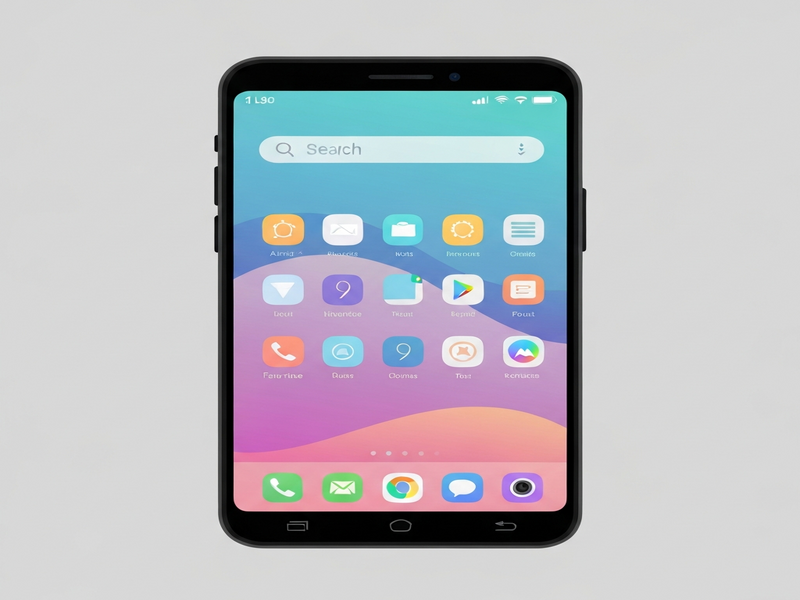
What Is a Shortcut‑Only Home Screen?
A shortcut‑only home screen replaces every widget tile with a simple app shortcut that launches the same functionality. Instead of a weather widget that constantly updates, you place a shortcut to your preferred weather app. Instead of a music player widget, you add a shortcut that opens the music app directly to the “Now Playing” screen.
This approach relies on the Android OS’s ability to create deep‑link shortcuts—links that open an app to a specific page or action. By curating a set of these shortcuts, users achieve the same information access without the visual clutter of widgets.
Benefits Over Traditional Widgets
- Performance Boost: Widgets constantly redraw themselves, consuming CPU and battery. Shortcuts are static icons, reducing background processing.
- Faster Load Times: Launching a shortcut opens the target app directly, bypassing widget rendering delays.
- Cleaner Aesthetic: Uniform icon size and shape create a minimalist look that many users find more pleasing.
- Greater Flexibility: Deep‑link shortcuts can target any in‑app location, offering more granular control than most widgets.
- Improved Compatibility: Some Android skins (e.g., Samsung One UI, Xiaomi MIUI) limit widget placement; shortcuts work universally across launchers.
User Reactions & Expert Commentary
After the Android Police experiment went viral, the community responded with a mix of enthusiasm and skepticism. Below are the most common themes:
Positive Feedback
• “My battery life improved by 12% after removing all widgets.” – a Reddit user who switched to a shortcut‑only layout on a Pixel 7.
• “The home screen feels less noisy; I can focus on the apps I actually use.” – a X post from a developer who uses AI marketing agents to schedule content.
Constructive Criticism
• “I miss the glanceable info—like calendar events—without opening the app.” – a user who prefers the AI SEO Analyzer widget for quick stats.
• “Some apps don’t support deep‑link shortcuts, so I still need a few widgets.” – a power user who highlighted the need for better developer support.
Expert Insight
Android UI/UX specialist Maria Chen told Android Police that “shortcuts are a lightweight alternative, but they shift the responsibility of information display from the OS to the app.” She recommends pairing shortcuts with Workflow automation studio to trigger notifications that compensate for missing glanceable data.
Step‑by‑Step Guide: Building Your Shortcut‑Only Home Screen
Follow these instructions to transition from widgets to shortcuts on any Android device. The process works with stock launchers, Nova Launcher, and the Web app editor on UBOS for advanced users.
- Identify Core Functions: List the widgets you currently use (e.g., weather, calendar, music). Determine the equivalent deep‑link actions within each app.
- Create Shortcuts:
- Long‑press the app icon on the app drawer.
- Select “Add shortcut” or “Create shortcut.”
- Choose the specific activity (e.g., “Open Weather → Current Location”).
- Organize with Folders: Group related shortcuts into folders to mimic widget clusters (e.g., “Productivity” for calendar, notes, and email).
- Leverage Automation: Use UBOS partner program tools like Telegram integration on UBOS to push daily summaries to your home screen via notifications.
- Test Battery Impact: Monitor battery usage in Settings → Battery → Usage. You should see a reduction compared to the widget‑heavy setup.
- Fine‑Tune with AI: Deploy OpenAI ChatGPT integration to suggest optimal shortcut placements based on your usage patterns.
For a visual walkthrough, check out our Android Home Screen Shortcuts guide, which includes screenshots for each step.
Understanding the Illustration
The image above depicts a typical shortcut‑only layout on a Pixel 6. Notice the uniform grid of icons, the absence of widget frames, and the use of a folder labeled “Media” that houses shortcuts to Spotify, YouTube, and the native Gallery app. The top‑right corner shows a small notification badge generated by a ElevenLabs AI voice integration that reads out the day’s weather when tapped.
Read the Original Story
For the full narrative and the author’s personal reflections, visit the original Android Police piece here.
Explore More UBOS Resources
Our ecosystem offers a suite of tools that complement a shortcut‑only home screen:
- UBOS homepage – Discover the full range of AI‑driven solutions.
- Enterprise AI platform by UBOS – Scale shortcut automation across large teams.
- UBOS solutions for SMBs – Tailored packages for small businesses looking to streamline workflows.
- UBOS for startups – Fast‑track product launches with pre‑built templates.
- UBOS templates for quick start – Jump‑start your shortcut automation with ready‑made blueprints.
- UBOS portfolio examples – See real‑world implementations of shortcut‑driven UI.
- UBOS pricing plans – Choose a plan that fits your customization needs.
- AI YouTube Comment Analysis tool – Enhance your media shortcuts with sentiment insights.
- AI Article Copywriter – Generate content for your shortcut‑linked blog apps.
- AI Chatbot template – Add a conversational shortcut to your home screen.
- ChatGPT and Telegram integration – Receive AI‑generated daily briefs via a shortcut.
- Chroma DB integration – Store and retrieve shortcut metadata efficiently.
Conclusion: Embrace the Shortcut‑Only Future
Switching to a shortcut‑only home screen is more than a cosmetic change; it’s a performance‑centric strategy that aligns with modern Android’s emphasis on speed, battery life, and visual clarity. While some users may still need occasional widgets for glanceable data, the majority can achieve a sleek, efficient interface by leveraging deep‑link shortcuts and AI‑powered automation.
If you’re ready to transform your Android experience, start by mapping your essential apps, create deep‑link shortcuts, and explore UBOS tools like the Workflow automation studio to automate daily tasks. Join the conversation on X, share your setup, and let us know how shortcuts have improved your workflow.
Take the first step today—visit the UBOS homepage and discover how AI can supercharge your Android home screen.
Andrii Bidochko
CTO UBOS
Andrii Bidochko is an AI entrepreneur and researcher focused on AI agents, reinforcement learning, and autonomous systems. He writes about the technologies shaping the future of machine intelligence, from frontier models and agent architectures to real-world AI applications.