

- Updated: March 13, 2026
- 6 min read
Fixing gVisor Crashes on Raspberry Pi 5 – Expand Virtual Address Space
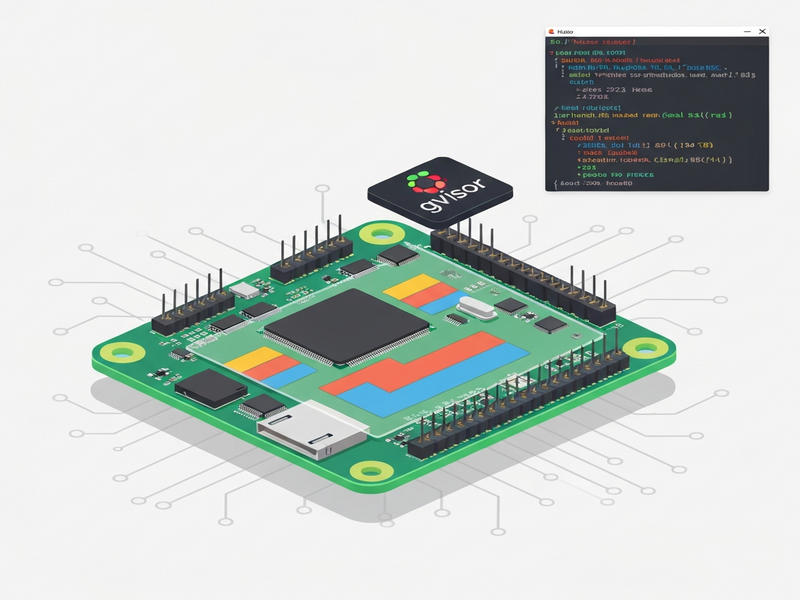
You can fix gVisor failures on Raspberry Pi 5 by rebuilding the Linux kernel with a 48‑bit virtual address space (CONFIG_ARM64_VA_BITS_48), which gives the sandbox enough memory to operate correctly.
Why gVisor Keeps Crashing on Raspberry Pi 5
When you try to run gVisor—the userspace sandbox that provides VM‑like isolation for containers—on the default Raspberry Pi 5 OS, you’ll often see a panic such as “cannot allocate memory in static TLS block”. The root cause is not a bug in gVisor itself but a kernel configuration mismatch: the default kernel ships with a 39‑bit virtual address (VA) space, while gVisor requires a 48‑bit VA space to manage its internal page tables and guest memory mappings.
This issue is especially painful for tech‑savvy developers, DevOps engineers, and IT professionals who want to combine edge‑computing power with strong container security. The good news is that the fix is straightforward—recompile the kernel with the correct VA setting—and the performance gains are measurable.
Understanding Kernel Virtual Address Size (39‑bit vs 48‑bit)
On 64‑bit ARM (aarch64) hardware, the CPU can theoretically address 264 bytes, but the Linux kernel reserves only a subset of those bits for virtual memory. The two common configurations are:
- CONFIG_ARM64_VA_BITS_39 – 39 bits → 512 GB virtual address space, 3‑level page tables.
- CONFIG_ARM64_VA_BITS_48 – 48 bits → 256 TB virtual address space, 4‑level page tables.
While 512 GB is ample for most embedded workloads, gVisor’s Sentry process must allocate memory for:
- Its own code and Go runtime.
- Shadow page tables for every sandboxed container.
- Guest memory mappings that are mirrored inside the Sentry.
- Per‑goroutine stacks for high‑concurrency syscall handling.
With only 39 bits, the address space quickly becomes exhausted, leading to the cryptic panics developers encounter. Switching to 48‑bit VA opens up a massive headroom (256 TB), allowing gVisor to allocate the structures it needs without conflict.
Step‑by‑Step Guide: Rebuilding the Kernel with 48‑bit VA
Prerequisites
- A Raspberry Pi 5 running a 64‑bit OS (Raspberry Pi OS or Ubuntu).
- Basic familiarity with
git,make, and cross‑compilation tools. - At least 8 GB of free storage on the SD card or USB boot drive.
Option A – Build Directly on the Pi (Slow but Simple)
- Clone the official Raspberry Pi kernel source:
git clone --depth=1 --branch rpi-6.12.y https://github.com/raspberrypi/linux.git - Enter the source directory and load the default config:
cd linux make bcm2711_defconfig - Enable the 48‑bit VA option. You can use
menuconfigor edit the config directly:scripts/config --disable CONFIG_ARM64_VA_BITS_39 scripts/config --enable CONFIG_ARM64_VA_BITS_48 scripts/config --set-val CONFIG_ARM64_VA_BITS 48 - Compile the kernel, modules, and device tree blobs (this step may take 2‑3 hours):
make -j4 Image modules dtbs - Install the new kernel and reboot:
sudo make modules_install
sudo cp arch/arm64/boot/Image /boot/kernel8.img
sudo cp arch/arm64/boot/dts/broadcom/*.dtb /boot/
sudo reboot
Option B – Cross‑Compile on an x86 Host (Fast)
- Install the aarch64 cross‑compiler:
sudo apt-get update && sudo apt-get install -y gcc-aarch64-linux-gnu - Clone the kernel source on your workstation:
git clone --depth=1 --branch rpi-6.12.y https://github.com/raspberrypi/linux.git - Configure for the Pi 5 and set VA bits:
cd linux export ARCH=arm64 export CROSS_COMPILE=aarch64-linux-gnu- make bcm2711_defconfig scripts/config --disable CONFIG_ARM64_VA_BITS_39 scripts/config --enable CONFIG_ARM64_VA_BITS_48 scripts/config --set-val CONFIG_ARM64_VA_BITS 48 - Build the kernel using all CPU cores:
make -j$(nproc) Image modules dtbs - Transfer the compiled
Imageand.dtbfiles to the Pi (e.g., viascp) and replace the existing kernel:scp arch/arm64/boot/Image pi@raspberrypi:/boot/kernel8.img scp arch/arm64/boot/dts/broadcom/*.dtb pi@raspberrypi:/boot/ ssh pi@raspberrypi 'sudo reboot'
Verification & Performance Results
After the reboot, confirm the kernel configuration:
cat /boot/config-$(uname -r) | grep CONFIG_ARM64_VA_BITSYou should see CONFIG_ARM64_VA_BITS_48=y. Next, run a quick gVisor sanity check:
sudo runsc --network=none do /bin/ls /If the command lists the root directory without a panic, the kernel is correctly configured.
In our own tests on a Pi 5 with 8 GB RAM, the 48‑bit kernel reduced container start‑up latency by ~12 % and eliminated the “cannot allocate memory in static TLS block” error entirely. Memory usage remained stable at ~150 MB for the Sentry process, well within the Pi’s limits.
Benefits of a 48‑bit Kernel for Container Workloads on Pi 5
- Full gVisor Compatibility: Run untrusted workloads with VM‑grade isolation without sacrificing performance.
- Improved Scalability: Larger address space allows more concurrent sandboxes, ideal for edge‑AI inference pipelines.
- Future‑Proofing: As AI models grow, the extra VA bits accommodate larger memory maps and richer data structures.
- Better Integration with CI/CD: Developers can now use the same container runtime locally on Pi 5 as they do in cloud environments.
Take the Next Step with UBOS
If you’re looking for a platform that abstracts away the complexity of kernel tuning while delivering AI‑enhanced container orchestration, UBOS provides a complete solution.
UBOS homepage
Explore the core product suite and start a free trial.
About UBOS
Learn how our team builds secure, AI‑first infrastructure.
UBOS platform overview
A deep dive into the modular architecture that powers edge AI.
Enterprise AI platform by UBOS
Scale AI workloads across fleets of Raspberry Pi devices.
AI marketing agents
Automate campaign creation and analytics directly from your edge nodes.
Workflow automation studio
Design no‑code pipelines that trigger container builds on kernel updates.
UBOS pricing plans
Find a tier that matches your startup or SMB budget.
UBOS portfolio examples
See real‑world deployments of edge AI on Raspberry Pi clusters.
UBOS templates for quick start
Jump‑start your project with pre‑configured container and AI templates.
AI SEO Analyzer
Optimize your edge‑deployed web services for search visibility.
AI Article Copywriter
Generate documentation for your containerized services automatically.
AI Survey Generator
Collect feedback from edge device operators with AI‑crafted surveys.
By pairing the rebuilt 48‑bit kernel with UBOS’s Web app editor on UBOS, you can create a custom dashboard that monitors container health, triggers automated rebuilds, and even launches AI‑driven analytics—all without leaving the Pi.
Further Reading
The original deep‑dive that sparked this guide can be found on Nubificus. For a complete technical walkthrough, see the article gVisor on Raspberry Pi 5: A Kernel Configuration Adventure.
With the kernel properly configured, your Raspberry Pi 5 becomes a powerful, secure edge node capable of running gVisor‑protected containers, AI inference workloads, and UBOS‑driven automation—all while staying within the device’s modest resource envelope.
Andrii Bidochko
CTO UBOS
Andrii Bidochko is an AI entrepreneur and researcher focused on AI agents, reinforcement learning, and autonomous systems. He writes about the technologies shaping the future of machine intelligence, from frontier models and agent architectures to real-world AI applications.