

- Updated: February 4, 2026
- 6 min read
Hidden Gmail Settings Unlocked: How to Optimize Your Android Email Experience
Unlock the Secret: Hidden Gmail Settings on Android Revealed
Answer: Gmail on Android hides several powerful settings—such as conversation view, swipe actions, and privacy controls—that can be toggled to boost productivity, protect your data, and personalize your inbox.
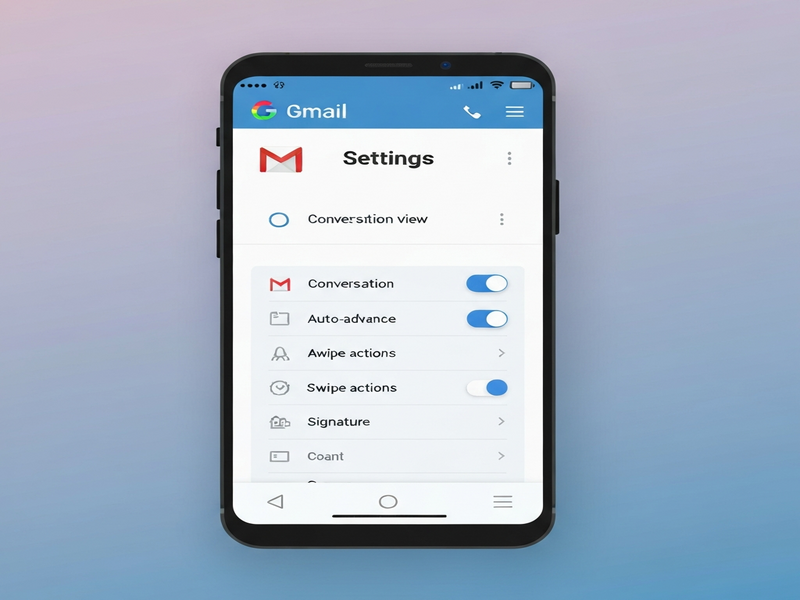
If you’ve ever felt that Gmail’s Android app is “just not flexible enough,” you’re not alone. Tech‑savvy Android users are constantly hunting for tweaks that give them an edge. The latest Android Police Gmail article lifted the veil on a handful of concealed options that most users never see. In this guide, we’ll break down each hidden setting, show you exactly how to enable it, and explain why it matters for privacy and productivity. For a deeper dive into AI‑driven productivity, visit the UBOS homepage and discover how AI can automate the rest of your workflow.
What Android Police Reported
Android Police’s investigative piece highlighted four settings that are tucked away in Gmail’s “Advanced” menu. The report noted that Google intentionally hides these options to keep the default experience simple, but power users can unlock them with a few taps. The article also warned that some of these settings affect how Gmail syncs data, which can have privacy implications for users who share devices or use public Wi‑Fi.
Hidden Settings Unpacked
Below is a MECE‑structured list of the hidden Gmail settings, why they exist, and how to access each one.
-
1. Conversation View Toggle
By default, Gmail threads related emails together. Turning off Conversation View separates each email into its own entry, making it easier to locate individual messages in a crowded inbox. How to enable: Settings → General → Conversation view → Off.
-
2. Swipe Actions Customization
Gmail lets you assign custom actions (archive, delete, mark as read) to left‑ and right‑swipe gestures. This hidden menu is under Settings → General → Swipe actions. Tailor the gestures to match your workflow and reduce tap count.
-
3. Auto‑Download Attachments
Prevent large attachments from auto‑downloading on cellular data. The setting lives in Settings → Data usage → Auto‑download attachments. Disabling it saves bandwidth and protects against unwanted data exposure.
-
4. Confidential Mode Defaults
Confidential Mode adds expiration dates and revocation controls to outgoing emails. The hidden toggle lets you set a default expiration period, streamlining secure communication. Find it under Settings → General → Confidential mode defaults.
Why These Settings Matter
Activating the hidden options can transform how you interact with Gmail on Android. Here are the top benefits:
- Enhanced Privacy: Controlling auto‑download and confidential mode reduces accidental data leaks.
- Faster Navigation: Custom swipe actions let you archive or delete with a single gesture.
- Better Email Management: Turning off conversation view simplifies bulk operations on individual messages.
- Reduced Data Usage: Preventing automatic attachment downloads saves mobile data, especially on limited plans.
Step‑by‑Step Guide for Android Users
-
Open Gmail and tap the three‑line menu. Scroll down and select Settings.
-
Select your account. This opens the account‑specific configuration page.
-
Enter the “General” section. All four hidden settings reside here.
-
Toggle Conversation View. Switch it off if you prefer separate messages.
-
Configure Swipe Actions. Choose “Archive” for left swipe and “Delete” for right swipe, or any combination that fits your workflow.
-
Adjust Auto‑Download. Under “Data usage,” disable auto‑download for large attachments when on cellular.
-
Set Confidential Mode defaults. Pick a default expiration (e.g., 7 days) to ensure all outgoing sensitive emails are automatically protected.
-
Save changes. Most toggles apply instantly, but you may need to restart the app for swipe actions to take effect.
Real‑World Use Cases
Let’s explore how these tweaks solve everyday problems for Android power users:
| Scenario | Hidden Setting Used | Result |
|---|---|---|
| Traveling on limited mobile data | Auto‑Download Attachments (off) | Saves megabytes and prevents unexpected charges. |
| Managing a shared device | Confidential Mode defaults | Ensures sensitive emails auto‑expire, protecting privacy. |
| Bulk‑deleting promotional newsletters | Swipe Actions (custom delete) | One‑swipe removal speeds up inbox cleanup. |
| Tracking project threads separately | Conversation View (off) | Each email appears as an independent item, simplifying sorting. |
Boosting Gmail Efficiency with AI
While the hidden settings give you granular control, pairing them with AI automation can supercharge your email workflow. The UBOS platform overview shows how you can build custom bots that read, categorize, and respond to Gmail messages automatically.
For example, the AI marketing agents can scan incoming leads, apply your preferred swipe actions, and forward qualified prospects to a CRM—all without you touching the app.
Startups looking for rapid prototyping can leverage the UBOS for startups program, which includes pre‑built templates like the AI Email Marketing template. This template automatically drafts personalized follow‑ups based on the content of incoming emails, respecting the privacy settings you’ve configured.
SMBs can benefit from the UBOS solutions for SMBs, which integrate the OpenAI ChatGPT integration to summarize long email threads, extract action items, and push them to project boards.
Enterprises seeking a robust, secure environment can adopt the Enterprise AI platform by UBOS. Its compliance‑ready architecture respects Gmail’s confidential mode defaults while providing AI‑driven analytics across millions of messages.
Explore More UBOS Tools to Extend Your Gmail Power
Beyond email, UBOS offers a suite of low‑code components that can be stitched together with the hidden Gmail settings you just unlocked:
- Web app editor on UBOS – design custom dashboards that surface your most important Gmail metrics.
- Workflow automation studio – create “if‑this‑then‑that” rules that trigger when a confidential email expires.
- UBOS pricing plans – choose a tier that matches your automation needs, from free starter packs to enterprise‑grade.
- UBOS portfolio examples – see real‑world cases where businesses have integrated Gmail with AI chatbots.
- UBOS templates for quick start – jump‑start your project with pre‑built email parsing templates.
- AI SEO Analyzer – ensure your email newsletters are SEO‑friendly before you hit send.
Conclusion: Take Control of Your Android Gmail Today
Hidden Gmail settings are a goldmine for Android power users who demand privacy, speed, and precision. By toggling conversation view, customizing swipe actions, managing attachment downloads, and setting confidential defaults, you instantly elevate your email experience. Pair these tweaks with UBOS’s AI‑driven automation tools, and you’ll turn a simple inbox into a smart productivity hub.
Ready to implement these changes? Start by following the step‑by‑step guide above, then explore the UBOS homepage for AI solutions that can further streamline your workflow. Share your results in the comments, and let the community know which hidden setting made the biggest difference for you.
Andrii Bidochko
CTO UBOS
Andrii Bidochko is an AI entrepreneur and researcher focused on AI agents, reinforcement learning, and autonomous systems. He writes about the technologies shaping the future of machine intelligence, from frontier models and agent architectures to real-world AI applications.