Flyworks MCP: Fast & Free Zeroshot Lipsync Tool - Integrated with UBOS
In the dynamic world of digital content creation, the ability to generate realistic and engaging lipsync videos is becoming increasingly important. Whether for marketing, entertainment, or education, the demand for high-quality, easily produced videos is surging. Addressing this need is the Flyworks MCP (Model Context Protocol) server, a groundbreaking tool that offers fast and free zeroshot lipsync capabilities.
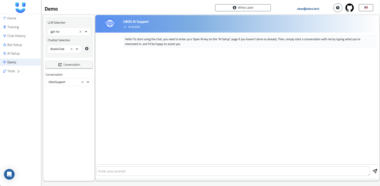
Flyworks MCP stands out by providing a seamless interface for interacting with the Flyworks API, enabling users to create lipsync videos for a diverse array of digital avatars, from realistic to cartoon styles. Integrated within the UBOS (Full-stack AI Agent Development Platform) ecosystem, it becomes an even more potent asset, allowing users to harness the power of AI agents to automate and enhance their content creation workflows.
Understanding the Flyworks MCP
The Flyworks MCP server is built upon the Model Context Protocol (MCP), an open standard that facilitates communication between applications and large language models (LLMs). In essence, it acts as a bridge, enabling AI models to access external data sources and tools. This allows for context-aware AI, where models can make more informed and accurate decisions.
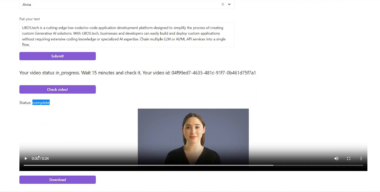
The Flyworks MCP leverages this protocol to provide a user-friendly interface for creating lipsync videos. By taking a digital avatar video (the footage) and an audio clip as inputs, it generates a video where the avatar’s lip movements are perfectly synchronized with the audio. The tool also supports text-to-speech functionality, allowing users to create lipsync videos from text alone.
Key Features of Flyworks MCP
- Fast and Free Lipsync Video Creation: The core functionality of Flyworks MCP is its ability to quickly and freely generate lipsync videos. This eliminates the need for expensive and time-consuming manual animation.
- Wide Range of Digital Avatars: The tool supports a diverse range of digital avatars, including both realistic and cartoon styles. This allows users to create videos that match their specific brand or aesthetic.
- Text-to-Speech Functionality: Flyworks MCP can generate audio from text, enabling users to create lipsync videos from written content alone. This is particularly useful for creating explainer videos or product demonstrations.
- Async and Sync Modes of Operation: The tool supports both asynchronous and synchronous modes of operation. In asynchronous mode, the task is submitted to the server, and the user receives a task ID to check the status later. In synchronous mode, the tool waits for the task to complete and automatically downloads the video.
- Integration with UBOS Platform: Seamlessly integrating with UBOS, Flyworks MCP benefits from the platform’s robust AI agent orchestration capabilities, allowing for automated content creation workflows.
Use Cases for Flyworks MCP
The applications of Flyworks MCP are vast and span numerous industries. Here are just a few examples:
- Marketing and Advertising: Create engaging video ads and social media content featuring digital avatars that speak directly to the target audience.
- E-learning and Training: Develop interactive e-learning modules with lipsync avatars that deliver educational content in a captivating manner.
- Customer Support: Design virtual customer service representatives that can answer frequently asked questions and provide assistance to customers.
- Entertainment: Produce animated shorts and music videos with realistic lipsync animation.
- Accessibility: Generate videos with sign language avatars to make content more accessible to deaf and hard-of-hearing individuals.
Integrating Flyworks MCP into Your Workflow
Flyworks MCP is designed to be easily integrated into existing workflows. It can be used with popular tools like Claude and Cursor, as well as integrated directly into custom applications.
Integration with Claude and Cursor:
The documentation provides detailed instructions on how to integrate Flyworks MCP with Claude and Cursor. This involves configuring the MCP server settings within these tools to point to the Flyworks MCP server.
Installing via Smithery:
Smithery provides a convenient way to install Flyworks MCP for Claude Desktop. This simplifies the installation process and ensures that all dependencies are properly configured.
Local Installation:
For more advanced users, Flyworks MCP can be installed locally. This requires cloning the repository, installing the necessary dependencies, and configuring the API token.
Leveraging UBOS for Enhanced Automation
The true power of Flyworks MCP is unlocked when it is integrated with the UBOS platform. UBOS is a full-stack AI agent development platform that allows users to orchestrate AI agents, connect them with enterprise data, and build custom AI agents with their own LLM models.
By integrating Flyworks MCP with UBOS, users can create automated content creation workflows. For example, an AI agent could be configured to automatically generate lipsync videos from new blog posts or product descriptions. This can save significant time and resources, while also ensuring that content is always fresh and engaging.
Getting Started with Flyworks MCP
To get started with Flyworks MCP, follow these steps:
- Obtain an API Token: You can use the free trial token (
2aeda3bcefac46a3) to experiment with the tool. However, be aware that the free trial has limitations. For full access, contact Flyworks AI to acquire a token. - Install Flyworks MCP: Choose the installation method that best suits your needs (via Smithery or local installation).
- Configure the API Token: Set the
FLYWORKS_API_TOKENenvironment variable with your API token. - Run the Server: Start the
server.pyfile. - Use the Tool: Utilize the provided tools (
create_lipsync_video_by_audioandcreate_lipsync_video_by_text) to generate lipsync videos.
Deep Dive into the Tools
Flyworks MCP provides two primary tools for generating lipsync videos:
1. Create Lipsync Video by Audio (create_lipsync_video_by_audio):
This tool creates a lipsync video using an audio input. It animates a digital human avatar to speak in sync with the provided audio. The parameters include:
avatar: The ID of the digital human avatar to use. If not provided, you can create an avatar using the following parameters:avatar_video_url: URL of a video to create the avatar from.avatar_image_url: URL of an image to create the avatar from.avatar_video_file: Local path to a video file to create the avatar from.avatar_image_file: Local path to an image file to create the avatar from.
audio_url: Remote URL of the audio file.audio_file: Local path to the audio file.title: Optional title for the created video.async_mode: If true, returns a task ID immediately. If false, waits for completion and downloads the video. Default is true.output_path: Where to save the downloaded video ifasync_modeis false. Default is “output.mp4”.
2. Create Lipsync Video by Text (create_lipsync_video_by_text):
This tool creates a lipsync video using text input. It generates audio from the text and animates a digital human avatar to speak it. The parameters include:
avatar: The ID of the digital human avatar to use. If not provided, you can create an avatar using the following parameters:avatar_video_url: URL of a video to create the avatar from.avatar_image_url: URL of an image to create the avatar from.avatar_video_file: Local path to a video file to create the avatar from.avatar_image_file: Local path to an image file to create the avatar from.
text: Text content to be spoken by the avatar. Required.voice: Voice ID to use for text-to-speech. If not provided, a random voice will be selected automatically.title: Optional title for the created video.async_mode: If true, returns a task ID immediately. If false, waits for completion and downloads the video. Default is true.output_path: Where to save the downloaded video ifasync_modeis false. Default is “output.mp4”.
Monitoring Task Status and Best Practices
For tasks run in asynchronous mode, you can check their status using the Flyworks API’s /creation/task endpoint with the task_id returned by the tool. Keep in mind:
- Job processing may take some time; patience is key.
- Video file URLs are temporary, so download and save them promptly.
- When using local files, the server will automatically upload them to Flyworks servers.
- In synchronous mode, the tool will wait for the task to complete and automatically download the video.
- The maximum allowed wait time for synchronous mode is 10 minutes (600 seconds).
- Avatar creation through videos usually provides better quality but takes longer.
- For quick testing, avatar creation through images is faster but may have lower quality.
Conclusion
Flyworks MCP is a powerful tool that democratizes the creation of lipsync videos. By offering fast, free, and easy-to-use functionality, it empowers content creators of all levels to generate engaging and realistic videos. When combined with the UBOS platform, it becomes an even more potent asset, enabling automated content creation workflows that can save time and resources. Whether you’re a marketer, educator, entertainer, or simply someone who wants to create engaging video content, Flyworks MCP is worth exploring. Embrace the future of AI-driven content creation with Flyworks MCP and UBOS.
By integrating Flyworks MCP with the UBOS platform, businesses can unlock new levels of efficiency and creativity in their content creation processes. UBOS’s AI agent capabilities allow for the automation of tasks such as avatar creation, audio generation, and video editing, freeing up human creators to focus on more strategic and creative endeavors. This synergy between Flyworks MCP and UBOS represents a significant step forward in the evolution of AI-powered content creation.
Flyworks Lipsync Server

Project Details
- Flyworks-AI/flyworks-mcp
- MIT License
- Last Updated: 5/10/2025
Recomended MCP Servers
A Model Context Protocol server that provides search capabilities using a Google CSE (custom search engine).
Repositório com um MCP-Server que calcula a receita ideal e faz uma pequena análise da saúde financeira da...
A zero-config VS Code database extension with affordances to aid development and debugging.
A powerful Model Context Protocol (MCP) server that revolutionizes NPM package analysis through AI.
Patchright (Playwright patch) MCP server for lightweight models
This MCP (Model Context Protocol) server is integrated into Claude's MCP and maintained by SailFish
Un serveur MCP (Model-Client-Protocol) pour accéder à l'API Gallica de la Bibliothèque nationale de France (BnF) et générer...
A code reasoning MCP server, a fork of sequential-thinking
Featured Templates
View More