Code with GitHub Copilot
GitHub Copilot can help you code by offering autocomplete-style suggestions right in VS Code and Codespaces.
Step 1: Leverage Codespaces with VS Code for Copilot
Welcome to “Develop With AI Powered Code Suggestions Using GitHub Copilot and VS Code”! :wave:
GitHub Copilot is an AI pair programmer that helps you write code faster and with less work. It draws context from comments and code to suggest individual lines and whole functions instantly. GitHub Copilot is powered by OpenAI Codex, a generative pretrained language model created by OpenAI.
Copilot works with many code editors including VS Code, Visual Studio, JetBrains IDE, and Neovim.
Additionally, GitHub Copilot is trained on all languages that appear in public repositories. For each language, the quality of suggestions you receive may depend on the volume and diversity of training data for that language.
Using Copilot inside a Codespace shows just how easy it is to get up and running with GitHub’s suite of Collaborative Coding tools.
Note This skills exercise will focus on leveraging GitHub Codespace. It is recommended that you complete the GitHub skill, Codespaces, before moving forward with this exercise.
:keyboard: Activity: Enable Copilot inside a Codespace
We recommend opening another browser tab to work through the following activities so you can keep these instructions open for reference.
Before you open up a codespace on a repository, you can create a development container and define specific extensions or configurations that will be used or installed in your codespace. Let’s create this development container and add copilot to the list of extensions.
Navigating back to your Code tab of your repository, click the Add file drop-down button, and then click
Create new file.Type or paste the following in the empty text field prompt to name your file.
.devcontainer/devcontainer.jsonIn the body of the new .devcontainer/devcontainer.json file, add the following content:
{
    // Name this configuration
    "name": "Codespace for Skills!",
    "customizations": {
        "vscode": {
            "extensions": [
                "GitHub.copilot"
            ]
        }
    }
}
Select the option to Commit directly to the
mainbranch, and then click the Commit new file button.Navigate back to the home page of your repository by clicking the Code tab located at the top left of the screen.
Click the Code button located in the middle of the page.
Click the Codespaces tab on the box that pops up.
Click the Create codespace on main button.
Wait about 2 minutes for the codespace to spin itself up.
Verify your codespace is running. The browser should contain a VS Code web-based editor and a terminal should be present such as the below:
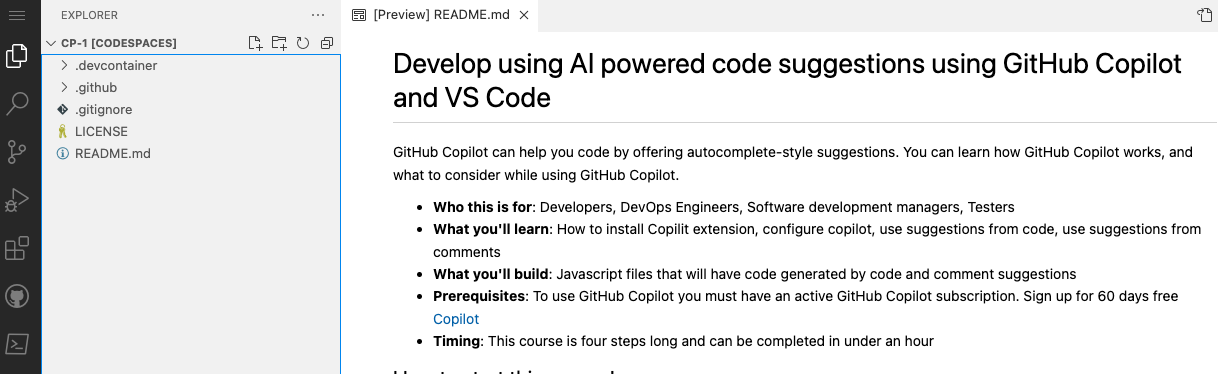
The
copilotextension should show up in the VS Code extension list. Click the extensions sidebar tab. You should see the following: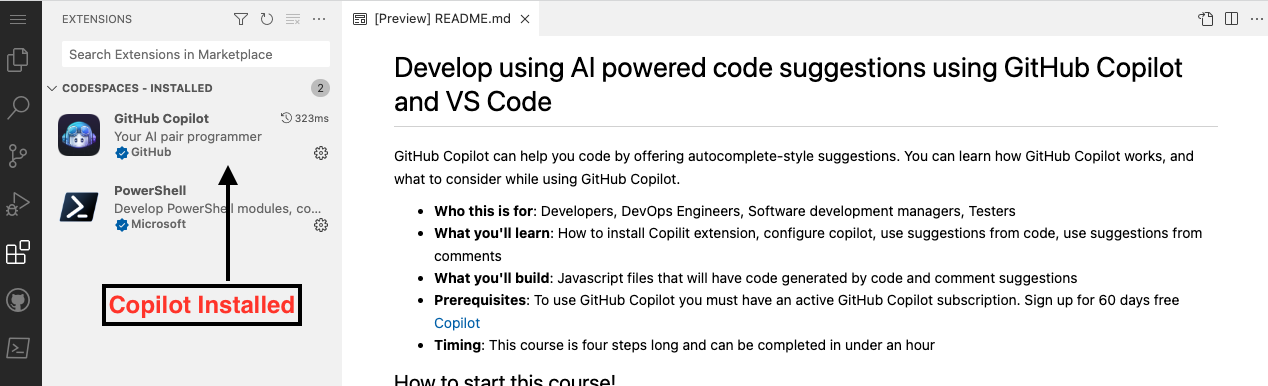
Wait about 60 seconds then refresh your repository landing page for the next step.
Code with GitHub Copilot
Project Details
- seoneum/skills-copilot-codespaces-vscode
- MIT License
- Last Updated: 11/13/2024
Recomended MCP Servers
A Model Context Protocol server implementation for Dart task management system
A MCP implementation for sending notifications via Pushover
加密mcp服务器,crypto mcp
Query and Summarize your chat messages.
A Model Context Protocol (MCP) server for PayPal API integration with backdated commits
Model Context Protocol server for Salesforce REST API integration
使用 Stata 绘制中国省级地图!比例尺、指北针、秦岭-淮河线、胡焕庸线、海岸线、未定国界都有!
simple memory mcp server with custom memory location
Featured Templates
View More