

- Updated: March 12, 2026
- 7 min read
Integrating OpenClaw with Microsoft Teams: Setup, Bot Configuration, and Security Best Practices
OpenClaw can be seamlessly integrated with Microsoft Teams by creating a Teams app, configuring a bot with proper token handling, and applying security best practices to protect data and credentials.
1. Introduction
IT administrators and developers often ask, “How can I bring the power of OpenClaw into the collaborative environment of Microsoft Teams?” This guide walks you through every step—from preparing your environment to deploying a secure bot that lets Teams users trigger OpenClaw workflows with a single command. By the end of this article you’ll have a production‑ready integration, a reusable code base, and a checklist of security controls.
2. Prerequisites
- Access to an UBOS homepage account (or any OpenClaw‑compatible hosting).
- Microsoft 365 tenant with admin rights to register apps in Azure AD.
- Node.js ≥ 18, npm, and a code editor (VS Code recommended).
- Basic knowledge of REST APIs and JSON Web Tokens (JWT).
- Optional but recommended: familiarity with Workflow automation studio to design OpenClaw pipelines.
3. Setting up OpenClaw
OpenClaw is a lightweight orchestration engine that runs on any Docker‑compatible host. Follow these steps to get a clean instance ready for Teams integration.
3.1 Pull the Docker image
docker pull ubos/openclaw:latest3.2 Run the container
docker run -d \
  -p 8080:8080 \
  -e OC_ADMIN_USER=admin \
  -e OC_ADMIN_PASS=StrongPassword123 \
  --name openclaw ubos/openclaw:latest
After the container starts, verify the UI at http://localhost:8080. Use the credentials set above to log in.
For a deeper dive on building pipelines, explore the UBOS platform overview which shares best practices for modular workflow design.
4. Creating a Microsoft Teams App
Microsoft Teams apps are registered in Azure AD. The following steps create a bot that Teams can call.
- Open Azure Portal → Azure Active Directory → App registrations. Click New registration.
- Enter a name such as
OpenClawBot. Set Supported account types to “Accounts in this organizational directory only”. - Under Redirect URI, select
Weband addhttps://YOUR_DOMAIN.com/auth/callback. Save. - Copy the Application (client) ID and Directory (tenant) ID. You’ll need them later.
- Navigate to Certificates & secrets → New client secret. Store the generated secret securely – it will not be shown again.
- In the API permissions blade, add
Microsoft Graph → Botand grant admin consent.
Once the Azure app is ready, you’ll create the Teams manifest. Use the Web app editor on UBOS to generate a JSON manifest that includes the bot ID and scopes.
5. Bot Configuration and Token Handling
The bot runs as a Node.js service that receives messages from Teams, validates the JWT, and forwards commands to OpenClaw’s REST API.
5.1 Install required packages
npm init -y
npm install express @microsoft/teams-js @azure/msal-node axios dotenv
5.2 .env file (keep it out of version control)
PORT=3000
TENANT_ID=YOUR_TENANT_ID
CLIENT_ID=YOUR_CLIENT_ID
CLIENT_SECRET=YOUR_CLIENT_SECRET
OC_API_URL=http://localhost:8080/api/v1
OC_API_KEY=YOUR_OPENCLAW_API_KEY
5.3 Token acquisition (MSAL)
const msal = require('@azure/msal-node');

const msalConfig = {
  auth: {
    clientId: process.env.CLIENT_ID,
    authority: `https://login.microsoftonline.com/${process.env.TENANT_ID}`,
    clientSecret: process.env.CLIENT_SECRET,
  },
};

const cca = new msal.ConfidentialClientApplication(msalConfig);

async function getAccessToken() {
  const tokenRequest = {
    scopes: ['https://graph.microsoft.com/.default'],
  };
  const response = await cca.acquireTokenByClientCredential(tokenRequest);
  return response.accessToken;
}
5.4 Express endpoint for Teams messages
const express = require('express');
const axios = require('axios');
require('dotenv').config();

const app = express();
app.use(express.json());

app.post('/api/messages', async (req, res) => {
  const { text } = req.body;
  // Simple command parsing – e.g., “run pipeline my-pipeline”
  const [, command, pipeline] = text.trim().split(' ');
  if (command !== 'run' || !pipeline) {
    return res.status(400).send({ reply: 'Usage: run <pipeline-name>' });
  }

  try {
    const token = await getAccessToken(); // from section 5.3
    const ocResponse = await axios.post(
      `${process.env.OC_API_URL}/pipelines/${pipeline}/execute`,
      {},
      {
        headers: {
          Authorization: `Bearer ${process.env.OC_API_KEY}`,
          'Content-Type': 'application/json',
        },
      }
    );
    res.send({ reply: `Pipeline ${pipeline} started. ID: ${ocResponse.data.runId}` });
  } catch (err) {
    console.error(err);
    res.status(500).send({ reply: 'Failed to start pipeline.' });
  }
});

app.listen(process.env.PORT, () => console.log('Bot listening on port', process.env.PORT));
Deploy this service to a cloud host (Azure App Service, AWS Elastic Beanstalk, or a Docker container on your own infrastructure). Ensure the public URL matches the redirect URI you set in Azure.
6. Integrating the Bot with OpenClaw
OpenClaw exposes a clean HTTP API. The bot code above already calls /pipelines/{name}/execute. To make the integration more robust, consider the following enhancements:
- Webhook feedback: Configure OpenClaw to POST status updates to
/api/webhook/teamsso the bot can push real‑time messages back to the Teams channel. - Parameter mapping: Extend the command parser to accept key‑value pairs (e.g.,
run my-pipeline env=prod) and forward them as JSON payload. - Retry logic: Use exponential back‑off when the OpenClaw endpoint returns 5xx errors.
For a visual reference of the end‑to‑end flow, see the diagram below.
7. Embedding the Workflow Diagram
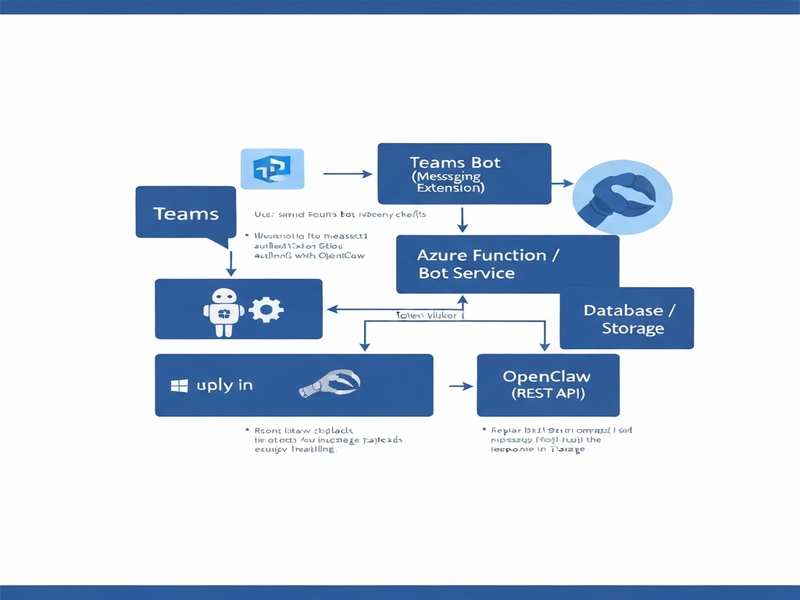
The diagram illustrates the request lifecycle: Teams → Azure AD (token) → Bot Service → OpenClaw API → Execution Engine → Optional webhook back to Teams.
8. Security Best Practices
Integrating two powerful platforms introduces attack surfaces. Follow these hardened guidelines to keep credentials, data, and users safe.
8.1 Principle of Least Privilege
- Grant the Azure AD app only the
Botpermission; avoid broad Graph scopes. - Limit the OpenClaw API key to
executeandreadactions on specific pipelines.
8.2 Secure Secret Management
- Store
CLIENT_SECRETandOC_API_KEYin Azure Key Vault or AWS Secrets Manager. - Never commit
.envfiles to Git; add them to.gitignore.
8.3 Enforce HTTPS Everywhere
Both the bot endpoint and OpenClaw API must be reachable only over TLS 1.2+. Use managed certificates from your cloud provider.
8.4 Validate Incoming JWTs
Before processing any Teams message, verify the token signature against Microsoft’s public keys. The @microsoft/teams-js library provides helpers for this.
8.5 Rate Limiting & Auditing
- Implement a per‑user rate limit (e.g., 5 pipeline triggers per minute) to prevent abuse.
- Log every request with user ID, pipeline name, and timestamp. Forward logs to a SIEM for anomaly detection.
8.6 Regular Penetration Testing
Schedule quarterly security assessments. Use tools like OWASP ZAP to scan the bot’s public endpoint for injection, XSS, and CSRF vulnerabilities.
For a deeper dive into secure AI‑driven workflows, explore the UBOS partner program which offers security consulting and compliance templates.
9. Where to Host OpenClaw?
If you prefer a managed solution, UBOS provides a dedicated hosting environment for OpenClaw. Visit the OpenClaw hosting page to spin up a pre‑configured instance with one‑click scaling.
10. Additional Resources & Templates
UBOS’s marketplace contains ready‑made templates that can accelerate your Teams‑OpenClaw projects:
- AI SEO Analyzer – useful for building content‑review bots inside Teams.
- AI Article Copywriter – demonstrates how to feed OpenClaw pipelines with generated text.
- AI Chatbot template – a quick start for conversational interfaces that can be extended to trigger OpenClaw.
- GPT-Powered Telegram Bot – see how another messaging platform integrates with OpenClaw for inspiration.
- AI Image Generator – combine image creation pipelines with Teams notifications.
11. Pricing & Support Considerations
UBOS offers flexible plans that cover both the OpenClaw runtime and the Teams bot hosting. Review the UBOS pricing plans to select a tier that matches your expected message volume and compute needs.
12. Conclusion
Integrating OpenClaw with Microsoft Teams unlocks a powerful, low‑code automation channel for your organization. By following the step‑by‑step setup, implementing robust token handling, and adhering to the security checklist above, you can deliver a reliable bot that empowers users to launch complex workflows without leaving Teams.
Ready to start? Deploy the bot, register the Teams app, and watch productivity soar. For any questions, the About UBOS team is happy to help.
For background on why many enterprises are choosing Teams‑first automation, see the original news article.
Andrii Bidochko
CTO UBOS
Andrii Bidochko is an AI entrepreneur and researcher focused on AI agents, reinforcement learning, and autonomous systems. He writes about the technologies shaping the future of machine intelligence, from frontier models and agent architectures to real-world AI applications.